
Sometimes you need a completely distraction-free page without navigation, header, or footer elements. This is especially useful for landing pages, sales pages, maintenance pages, thank-you pages, event registrations, and embedded content.
If you are using YOOtheme Pro with Joomla, you can easily create a page without the default website header and footer by combining a custom page class with a small CSS snippet.
In this tutorial, you will learn how to create a clean page layout without header and footer in YOOtheme Pro for Joomla 5 and Joomla 6.
Why Create a Page Without Header and Footer?
A standard website layout usually includes navigation menus, branding elements, sidebars, and footer content. While these elements are important for most pages, there are situations where removing them can improve user experience and conversion rates.
Common use cases include:
-
Landing pages for marketing campaigns
-
Product launch pages
-
Webinar registration pages
-
Coming soon pages
-
Maintenance pages
-
Thank-you pages after form submissions
-
Embedded content displayed inside iframes or modal windows
By removing unnecessary distractions, visitors can focus entirely on the content and call-to-action.
Step 1: Create a New Article
Navigate to:
Dashboard → Content → Articles → New
Create your new Joomla article and save it.
Step 2: Create a Menu Item
Navigate to:
Dashboard → Menus → Your Menu → New
Configure the menu item as follows:
-
Menu Item Type → Articles → Single Article
-
Select the article you created
-
Define whether the menu item should be visible in the menu
Save your settings.
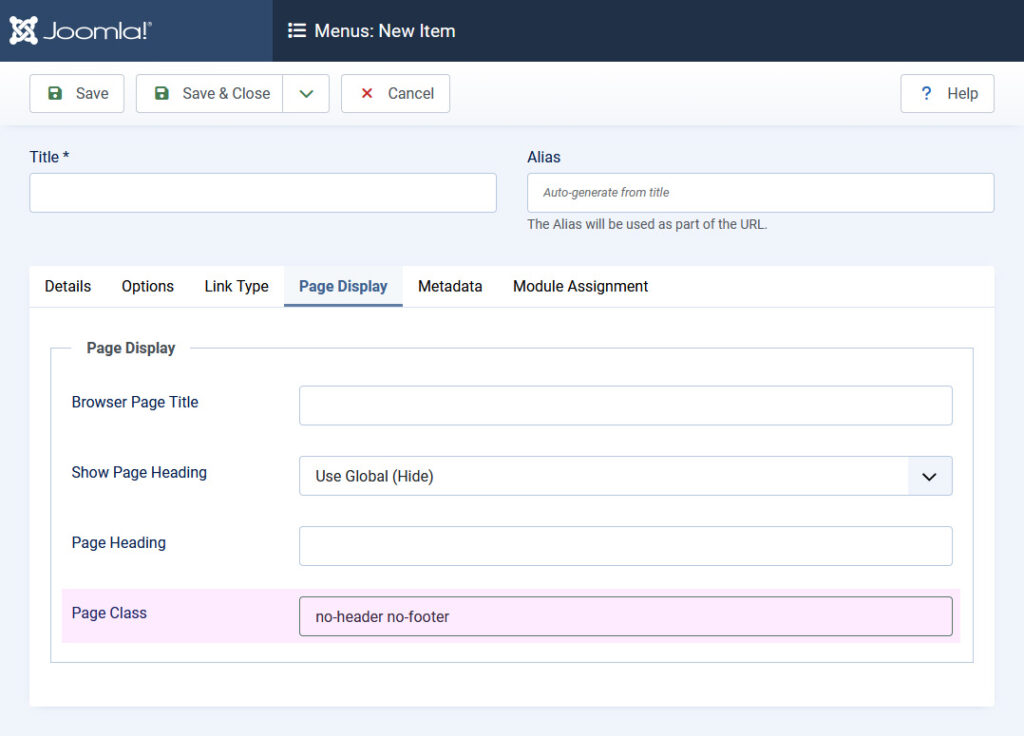
Step 3: Add a Custom Page Class
Open the Page Display tab and enter the following Page Class:
no-header no-footer
This custom class allows us to target the page using CSS.
If you only want to hide one element, use:
no-header
or
no-footer
depending on your requirements.
Step 4: Add the CSS Code
Navigate to:
YOOtheme → Settings → Custom Code → CSS/LESS
Add the following code:
.no-header .tm-page > header, .no-footer .tm-page > footer { display: none; }
Save your changes and clear any Joomla or browser cache.
How the CSS Works
The custom Page Class is added to the page output generated by Joomla and YOOtheme Pro.
The CSS targets pages that contain the classes:
no-header
or
no-footer
and hides the corresponding page elements.
This method does not modify Joomla core files or YOOtheme Pro files, making it update-safe and easy to maintain.
Compatibility
This solution works with:
-
Joomla 5
-
Joomla 6
-
Current versions of YOOtheme Pro
Since the approach uses standard CSS and YOOtheme page classes, it is lightweight and highly reliable.
Alternative Use Cases
Many website owners use this technique to create:
-
High-converting landing pages
-
Sales funnels
-
Membership login pages
-
Event registration pages
-
Popup and modal content
-
Client-specific presentation pages
By removing navigation and footer links, visitors are less likely to leave the page before completing the intended action.
Conclusion
Creating a page without header and footer in YOOtheme Pro is a simple but effective customization for Joomla websites.
Using a custom Page Class and a small CSS snippet, you can create distraction-free landing pages without modifying Joomla or YOOtheme Pro core files.
The solution is easy to implement, update-safe, and fully compatible with Joomla 5 and Joomla 6.
FAQ
How do I create a page without header and footer in YOOtheme Pro?
Create a custom Page Class such as no-header no-footer and use CSS to hide the corresponding elements.
Can I hide only the header or only the footer?
Yes. Use either no-header or no-footer as the Page Class.
Does this work with Joomla 6?
Yes. The method is compatible with Joomla 5 and Joomla 6.
Will this affect other pages on my website?
No. The CSS only affects pages that use the specified Page Class.
Do I need to modify YOOtheme Pro files?
No. The solution only uses custom CSS and remains update-safe.
Leave a Reply
You must be logged in to post a comment.