A4p Reviews Lite – Documentation
Google Reviews for Joomla and YOOtheme Pro
Extension version: 2.0.4
Joomla: 6.x
PHP: 8.3 or later
Languages: English and German
Index

4. Purchasing and Downloading the Product
- Open the A4p Reviews Lite product page on addons4.pro.
- Select the available license option.
- Add the product to the cart.
- Complete the checkout process.
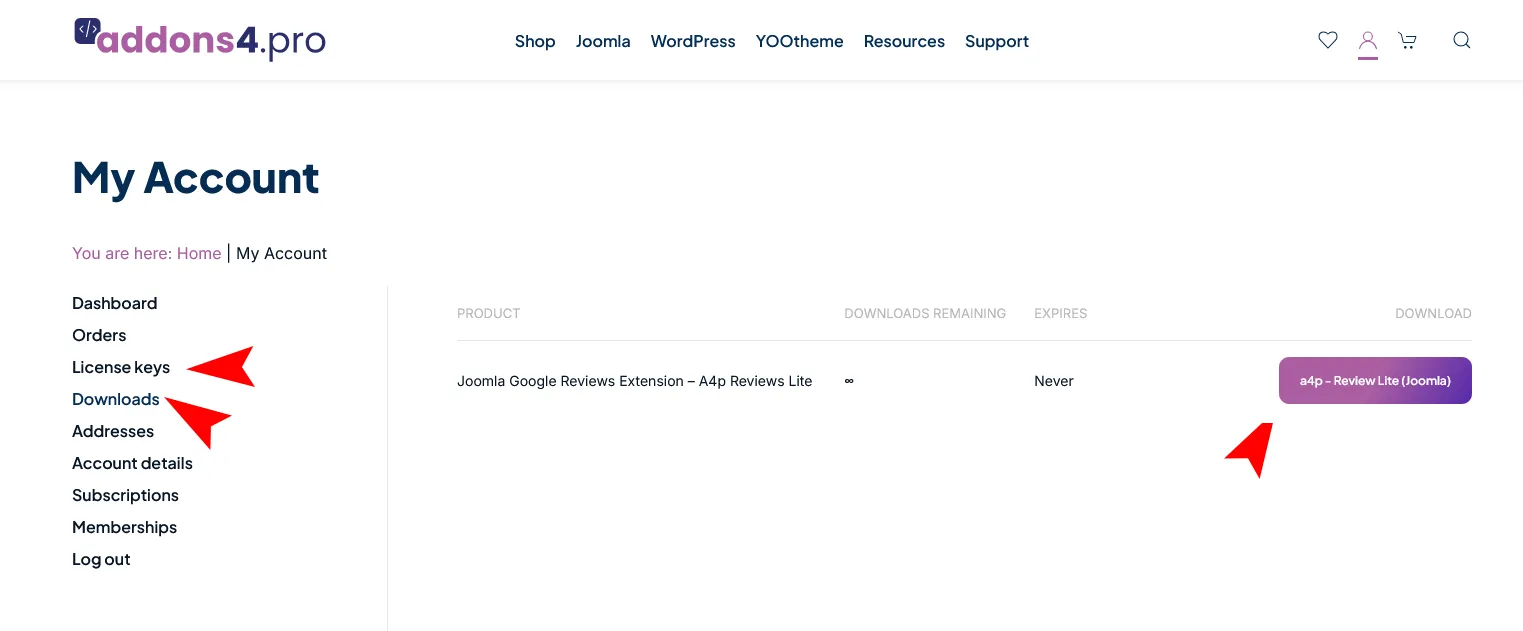
- Sign in to your addons4.pro customer account.
- Open the downloads or orders section.
- Download the complete Joomla installation package.
- Copy the license key associated with the purchase.
Keep the original ZIP package intact. Joomla installs the complete package and its included extensions automatically.
Do not separately upload the internal ZIP packages unless addons4.pro support specifically instructs you to do so.
Store the license key securely. Do not publish it in screenshots, public documentation, support forums or source repositories.
5. Installing A4p Reviews Lite in Joomla
5.1 Create a Backup
Before installing or updating an extension on a production website:
- Create a database backup.
- Create a filesystem backup.
- Verify that the backup can be restored.
- If possible, test the installation on a staging copy first.
5.2 Install the Package
- Sign in to the Joomla administrator area.
- Go to System → Install → Extensions.
- Select the Upload Package File tab.
- Upload a4p_reviews_lite-joomla.zip.
- Wait until Joomla completes the package installation.
- Confirm that Joomla reports a successful installation.
The package installs the component, module, system plugin and task plugin together.
5.3 Verify the Installation
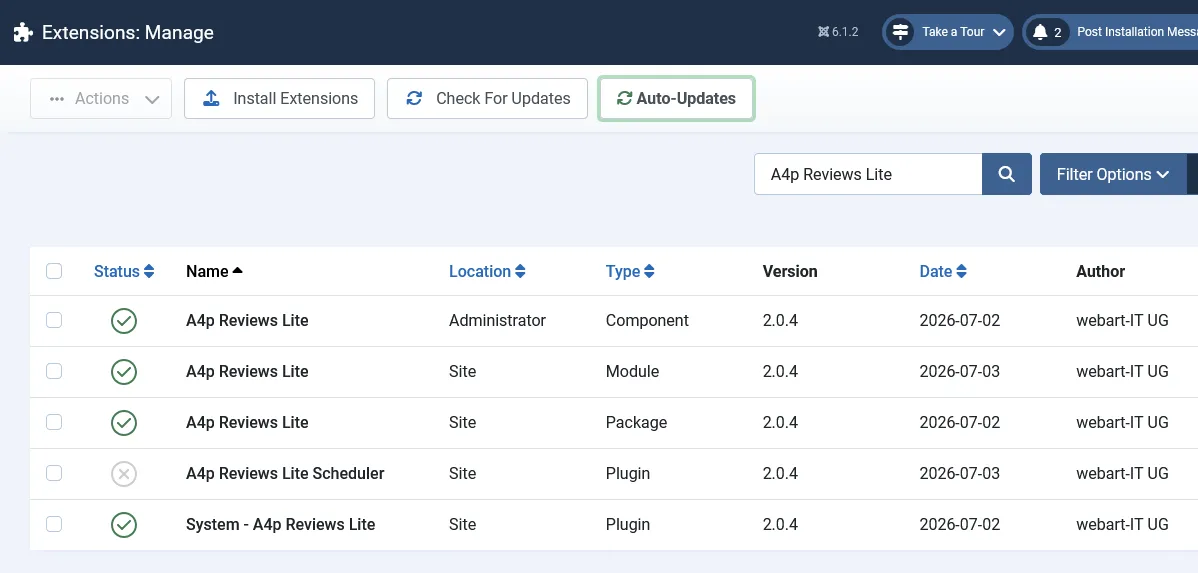
Open System → Manage → Extensions and search for A4p Reviews Lite.
Verify that the following entries exist:
- A4p Reviews Lite component
- A4p Reviews Lite site module
- System – A4p Reviews Lite
- Task – A4p Reviews Lite
If one of these entries is missing, reinstall the complete package before continuing.
6. Activating the License
The system plugin manages the package license and protected Joomla updates.
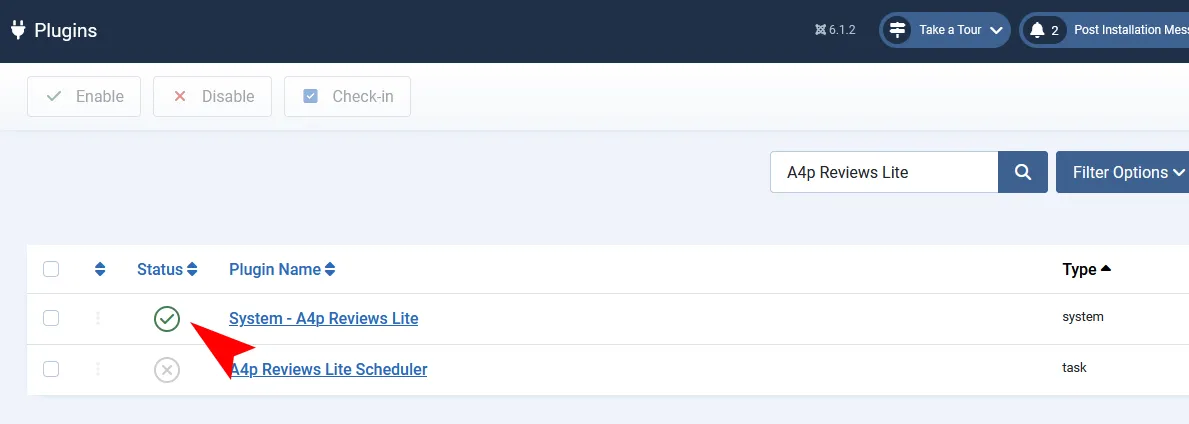
- Go to System → Manage → Plugins.
- Search for A4p Reviews Lite.
- Open System – A4p Reviews Lite.
- Set Status to Enabled.
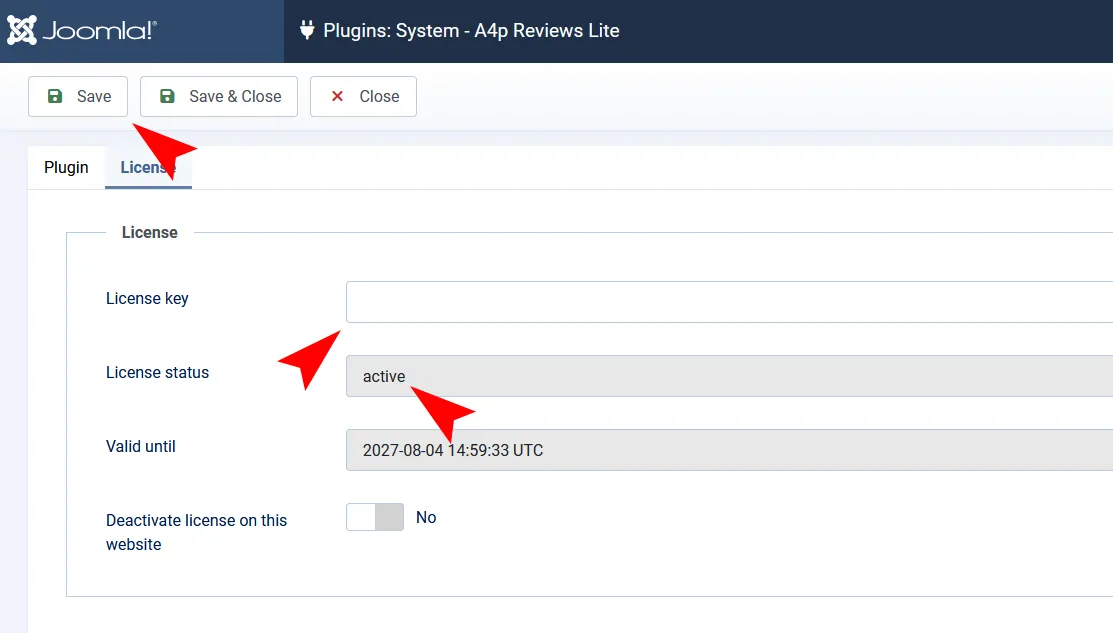
- Enter the license key from your addons4.pro account.
- Click Save.
- Wait for the activation request to finish.
- Check the displayed license status.
- Confirm that the license is active for the current website.
- Confirm the displayed expiration or entitlement information where applicable.
The license is activated for the current website address. Moving or cloning the website may require deactivation on the previous address and activation on the new one.
Deactivating a Website
To release the activation:
- Open System – A4p Reviews Lite.
- Enable the license-deactivation option.
- Save the plugin.
- Confirm that the website activation has been released.
Deactivate the license before permanently moving the website when possible.
License Troubleshooting
If activation fails, check:
- The license key was copied without spaces
- The subscription or entitlement is active
- The website can make outgoing HTTPS connections
- The current domain matches the intended activation
- The PHP Sodium extension is available
- A security extension is not blocking the request
- The addons4.pro licensing endpoint is reachable
- The maximum number of activations has not yet been reached.
7. Creating the Google Cloud Project
Google’s interface may change over time, but the underlying process remains the same.
Use the official Google Cloud Console and current Google Places API documentation when labels differ from this guide.
7.1 Create or Select a Project
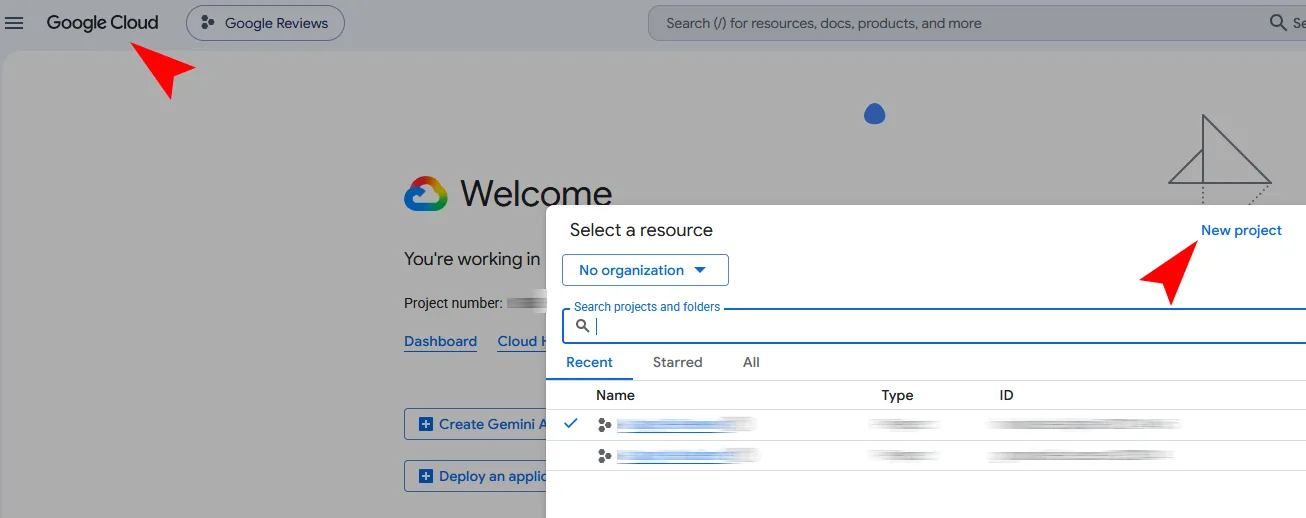
- Sign in to the Google Cloud Console.
- Open the project selector.
- Select an existing project or choose New Project.
- Enter a descriptive project name, such as Company Website Reviews.
- Assign the project to the correct organization or billing account when required.
- Create the project.
- Make sure the new project is selected before continuing.
Using a dedicated project makes quotas, credentials and billing easier to monitor.
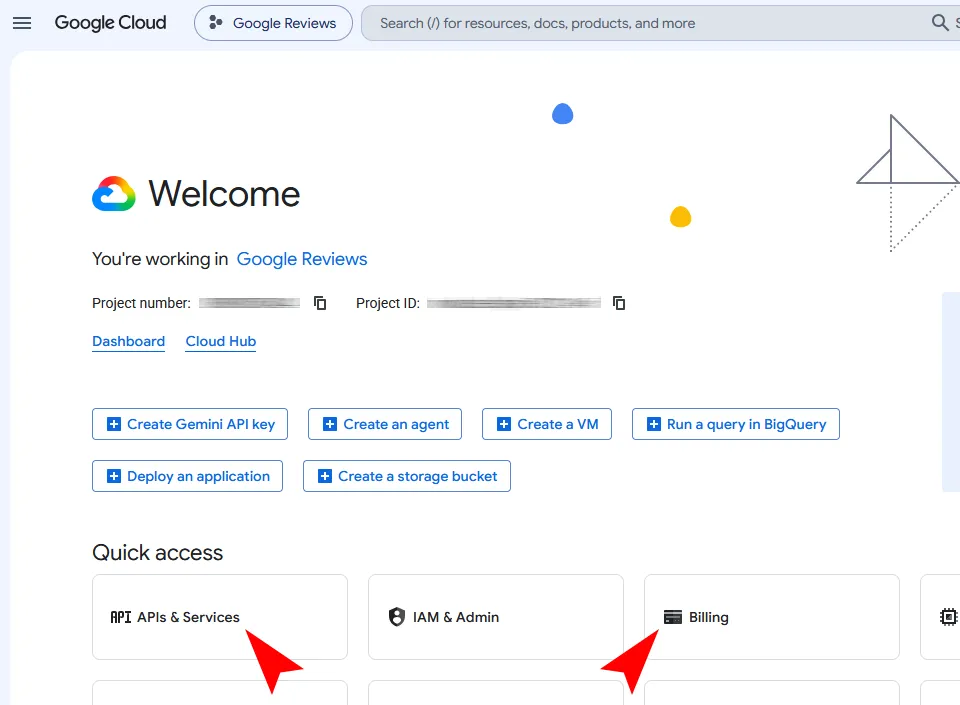
7.2 Enable Billing
Google Maps Platform services normally require an active billing account.
- Open Billing in Google Cloud.
- Link the project to the correct billing account.
- Verify that billing is active.
- Configure budget notifications if appropriate.
A4p Reviews Lite does not manage Google billing. Charges, quotas and credits are controlled entirely by Google.
7.3 Enable Places API (New)
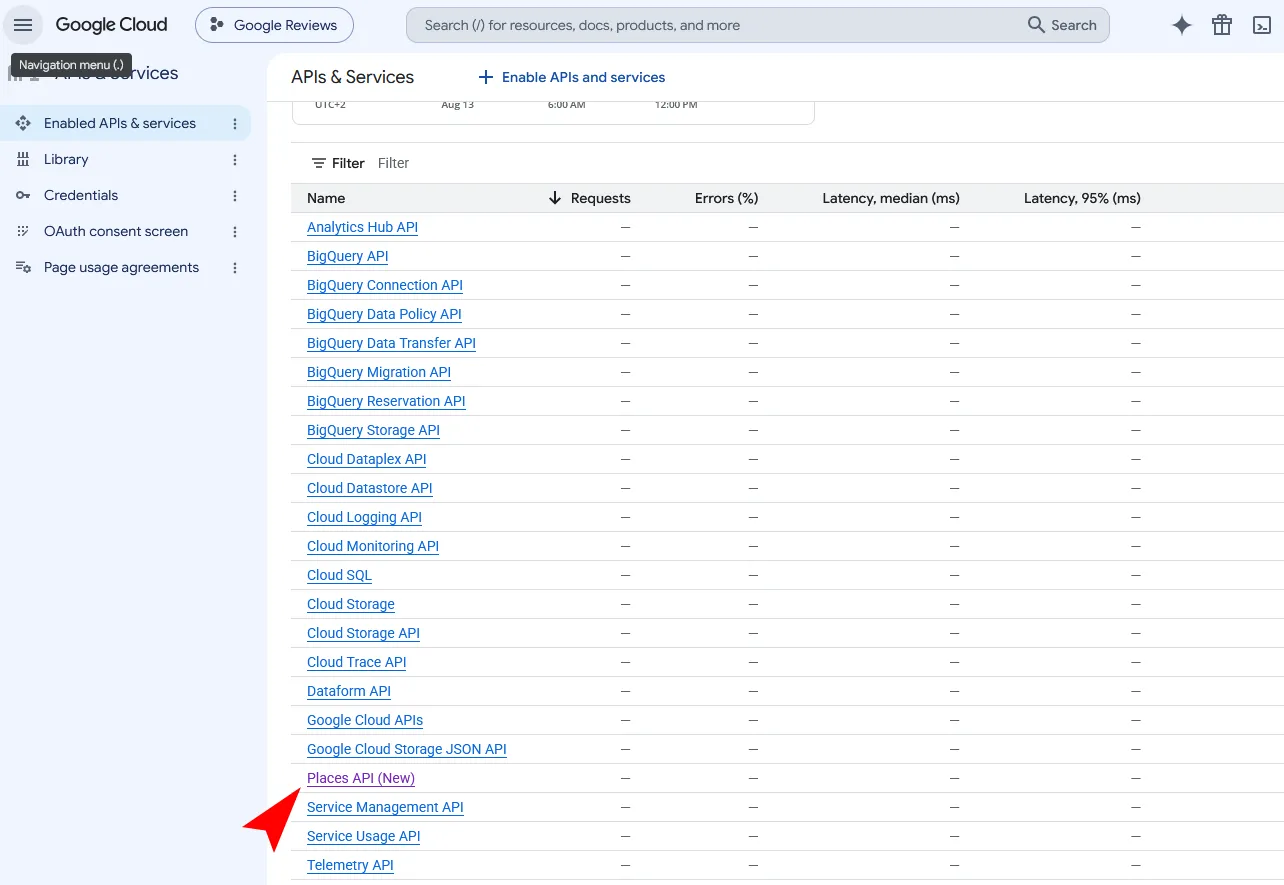
- Open APIs & Services → Library.
- Search for Places API (New).
- Open the result named Places API (New).
- Click Enable.
- Wait until activation is complete.
Do not rely on an older Places API being enabled. A4p Reviews Lite uses the current Places API endpoint.
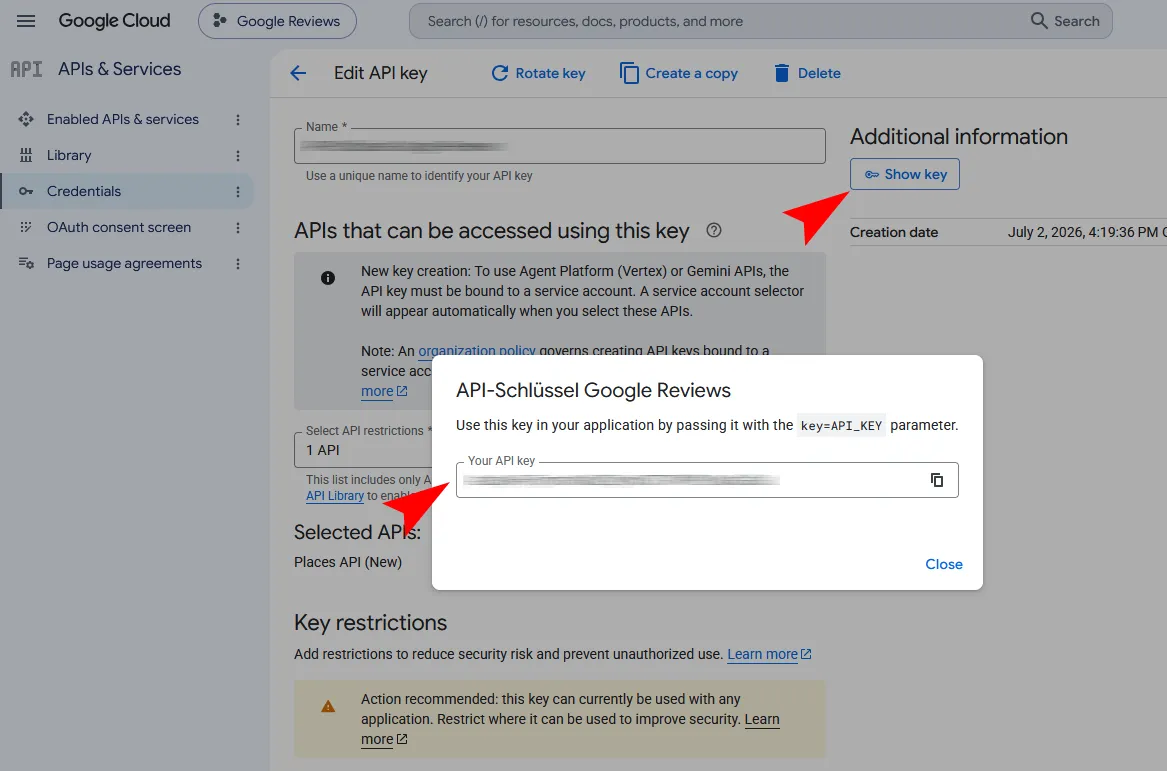
8. Creating and Securing the Google API Key
8.1 Create a Dedicated Key
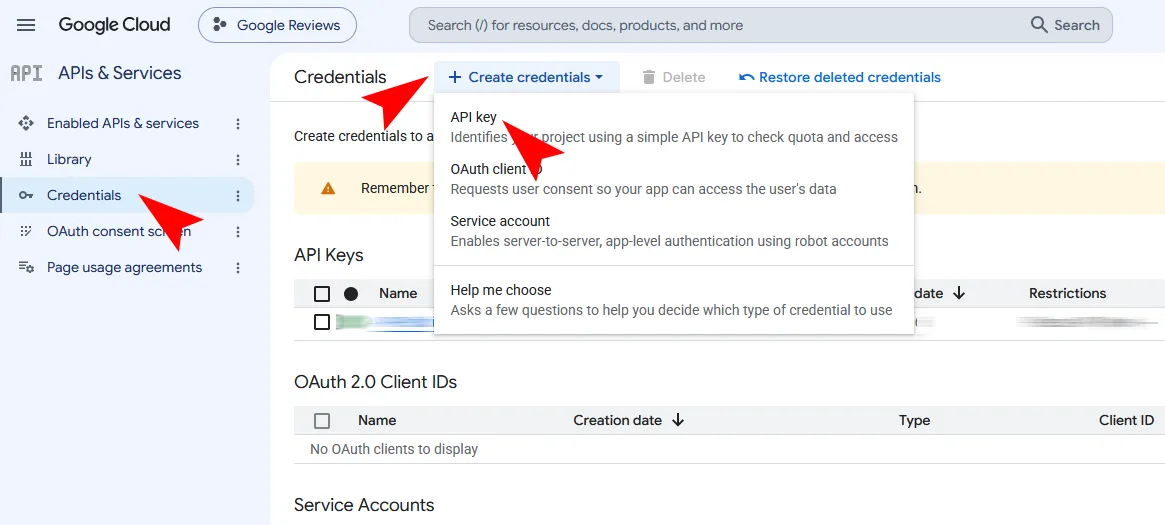
- Open APIs & Services → Credentials.
- Click Create Credentials.
- Select API key.
- Copy the generated key temporarily.
- Give the key a descriptive name such as A4p Reviews Lite – Production.
Use a separate key for this website instead of sharing one unrestricted key between unrelated projects.
8.2 Apply API Restrictions
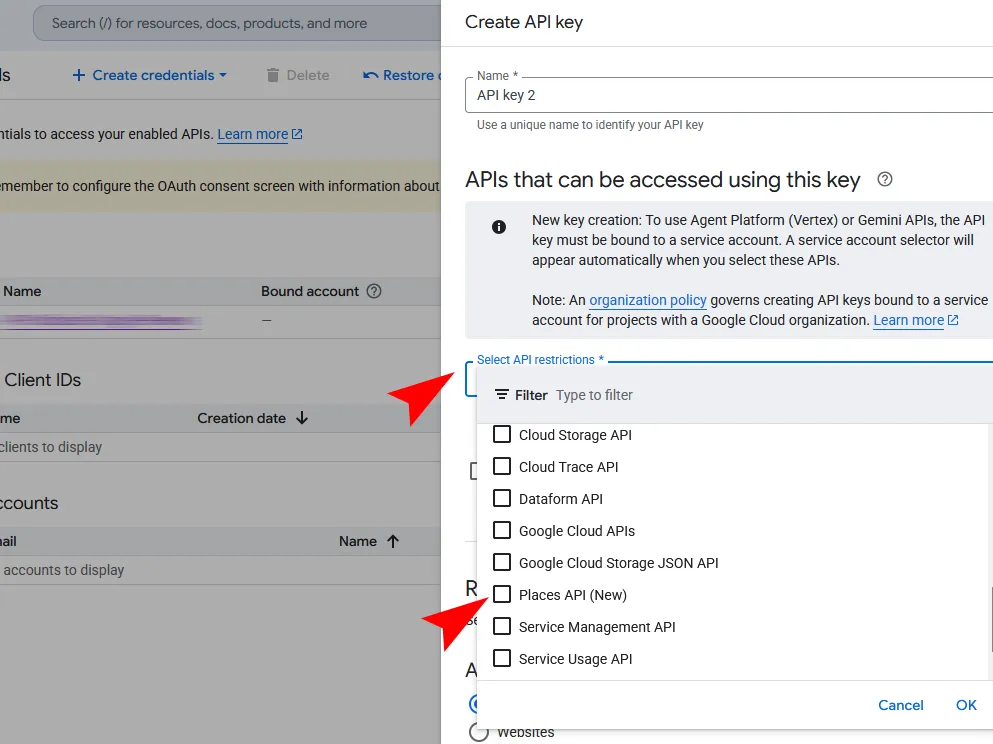
- Open the new API key.
- Find API restrictions.
- Select Restrict key.
- Allow only Places API (New).
- Save the restriction.
This prevents the key from being used with unrelated Google APIs.
8.3 Apply Application Restrictions
A4p Reviews Lite sends the API request from the Joomla server. It is not a browser-side JavaScript request.
If your hosting environment provides a fixed outgoing server IP:
- Select the IP-address restriction.
- Add the server’s public outgoing IP address.
- Save the restriction.
- Test synchronization.
Do not apply an HTTP referrer restriction to a server-side key. Referrer restrictions are intended for browser-based requests and can prevent the Joomla server from using the key.
If the hosting provider uses changing outbound IP addresses, ask the provider which restriction is appropriate. If an IP restriction is temporarily impossible, keep the API restriction limited to Places API (New), monitor usage and replace the key immediately if exposure is suspected.
8.4 Protect the Key
- Never place the key in public HTML
- Never include it in screenshots
- Never publish it in a repository
- Do not send it through unsecured communication channels
- Configure Google Cloud quotas and budget alerts
- Rotate the key if it may have been exposed
- Delete unused keys
The key is stored in the Joomla component configuration and used for server-side synchronization.
9. Finding the Google Place ID
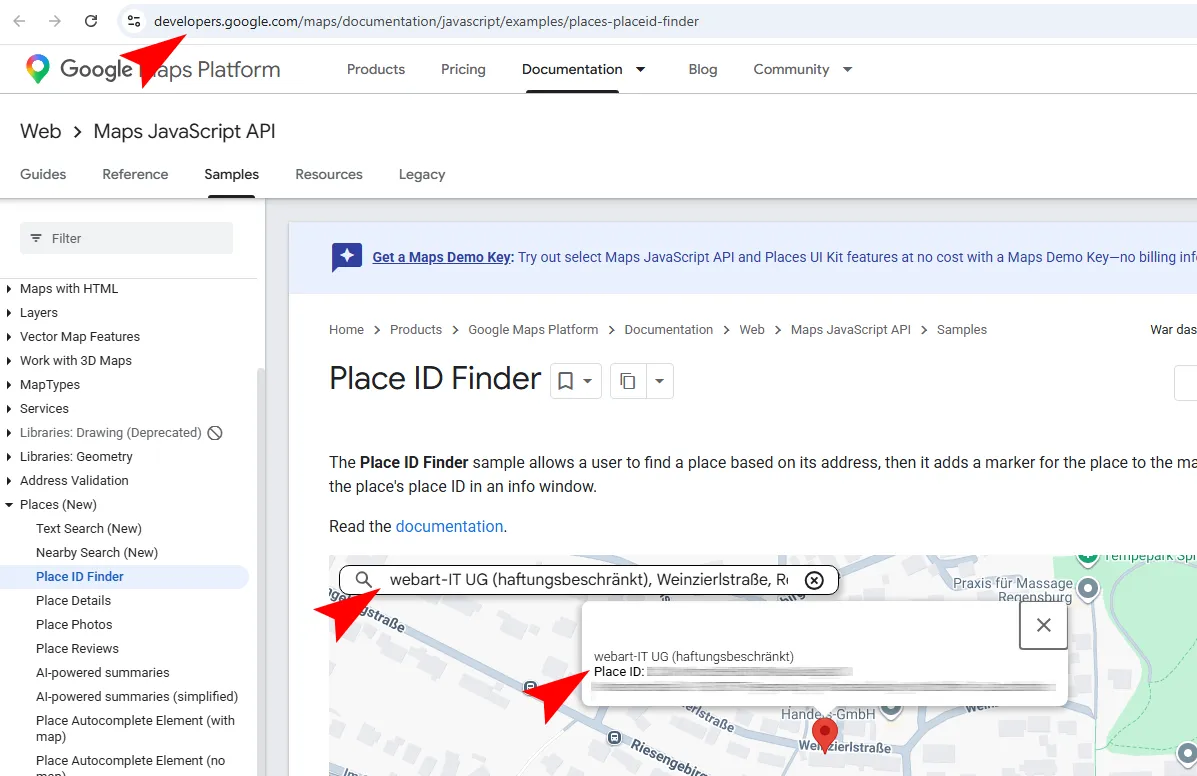
A Place ID uniquely identifies the Google business location.
- Open Google’s official Place ID finder or the current Places documentation.
- Search for the full business name and address.
- Select the exact location.
- Copy the displayed Place ID.
- Verify that the selected entry represents the intended business location.
A Place ID is not:
- The visible Google Maps URL
- A Google Business Profile account number
- A customer ID
- A Maps CID copied from an unrelated tool
Businesses with several locations normally have a different Place ID for each location. A4p Reviews Lite should be configured with the Place ID belonging to the location whose reviews you want to import.
10. Configuring A4p Reviews Lite
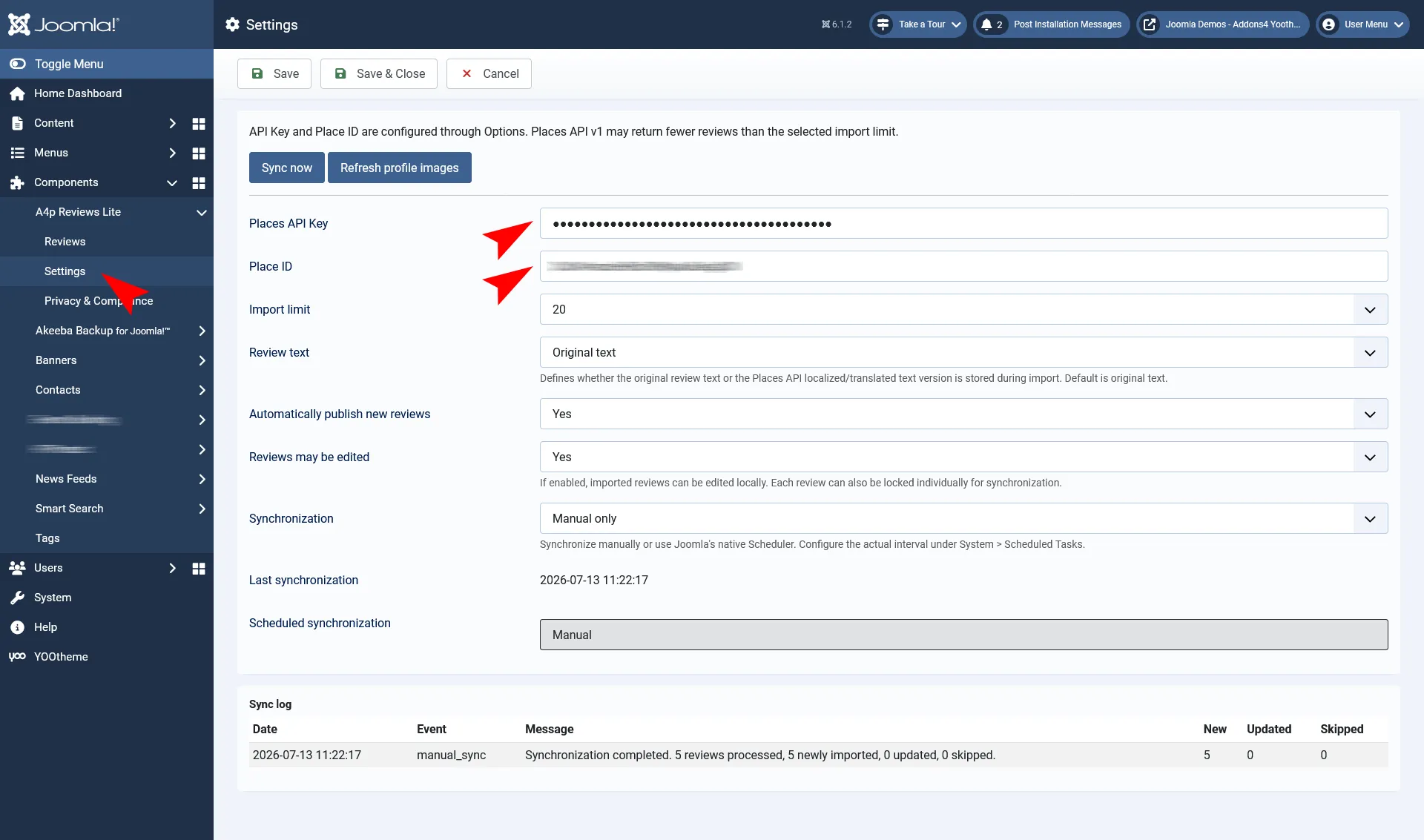
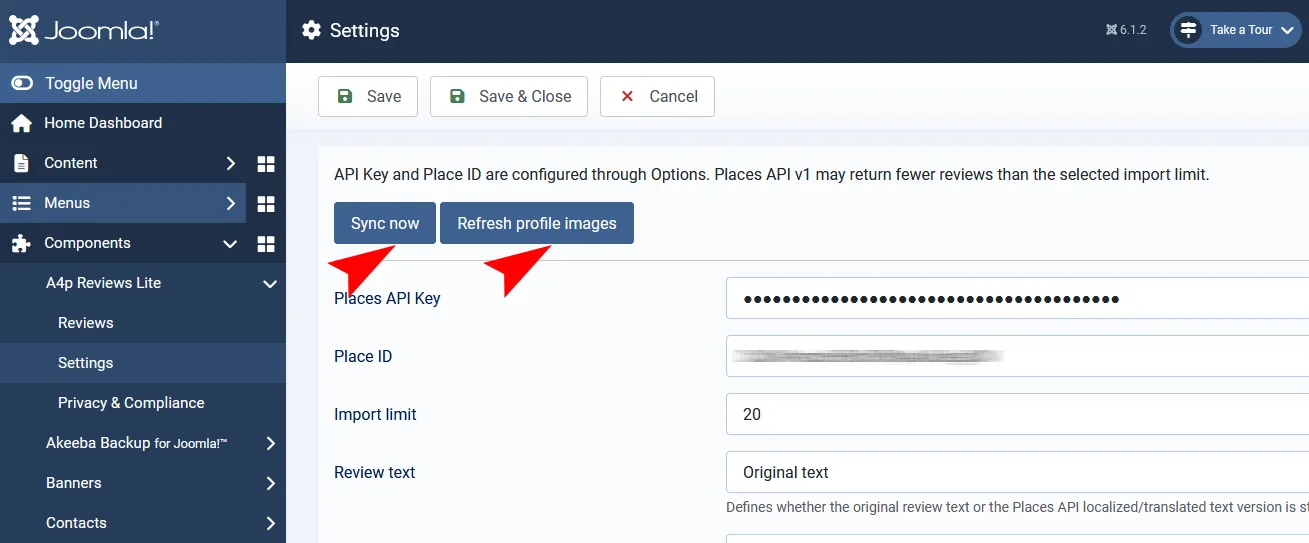
- In Joomla, open Components → A4p Reviews Lite.
- Open Settings.
- Enter the Google Places API key.
- Enter the Google Place ID.
- Configure the available import options.
- Click Save.
API Key
Enter the dedicated key created for Places API (New).
Avoid leading or trailing spaces.
Place ID
Enter the exact Place ID of the business location.
Import Limit
Choose how many reviews from the Google response should be processed.
Google currently returns no more than five reviews. A higher component limit does not cause Google to supply more than its API permits.
Review Text
Choose between the review text supplied in its original form and the translated or localized version supplied by Google, where available.
This setting does not create a new machine translation inside Joomla. It determines which available text representation from Google is used.
Automatic Publishing
When enabled, newly imported reviews are immediately published.
For a moderated workflow, disable automatic publishing. New reviews can then be checked and published manually.
Protect Local Changes
Enable this option when editorial changes to imported reviews should be preserved during later synchronization runs.
Individual records can additionally be protected through their synchronization-lock setting.
Synchronization Mode
Choose:
- Manual when synchronization should only run from the component
- Scheduler when Joomla Scheduled Tasks should be allowed to run synchronization automatically
Selecting Scheduler mode does not by itself guarantee that Joomla executes scheduled jobs. A scheduler trigger must also be active.
12. Managing Reviews in Joomla
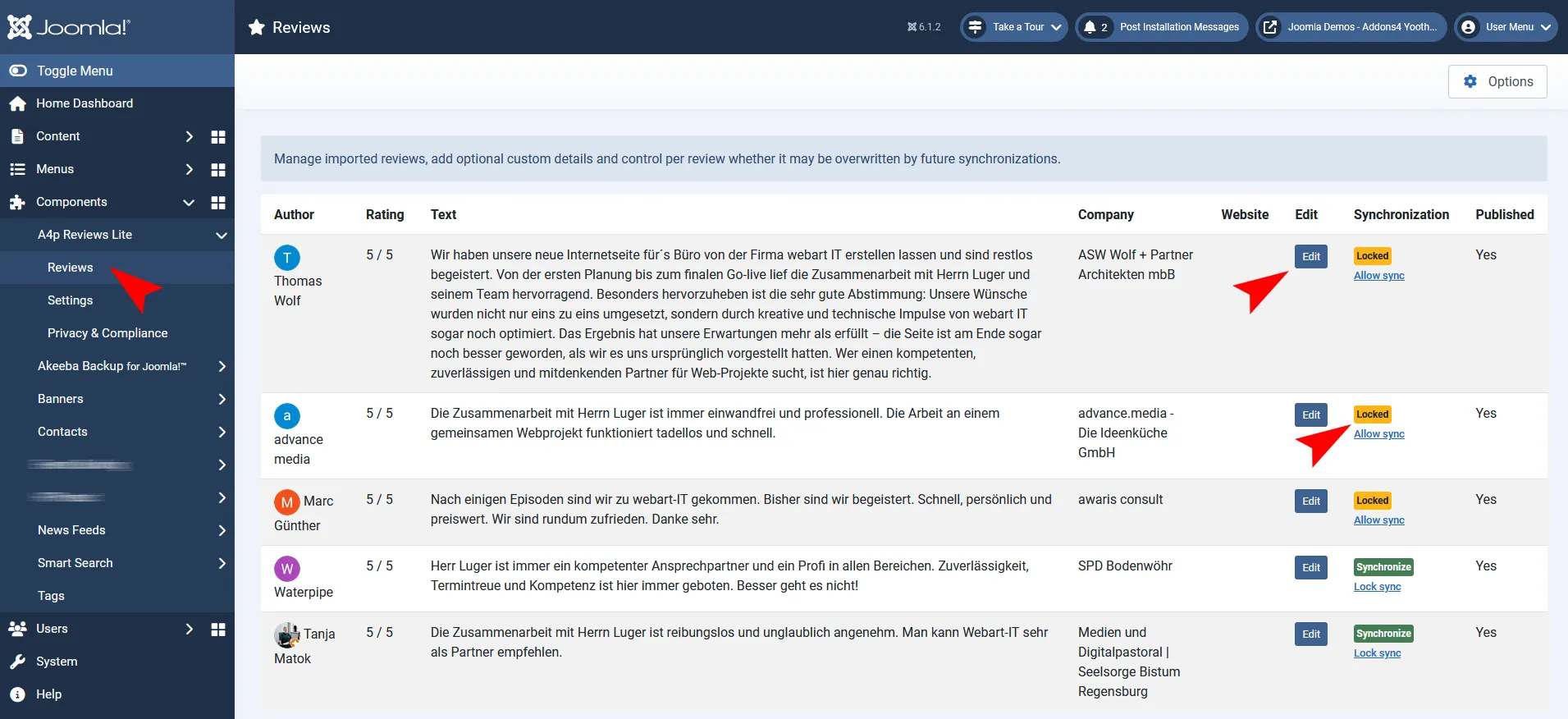
Open Components → A4p Reviews Lite → Reviews.
The review list provides access to imported records and their publication state.
12.1 Publishing
Only published reviews are available to:
- The Joomla module
- YOOtheme Pro Dynamic Content
To hide a review without deleting it, set it to unpublished.
12.2 Editing a Review
Open a review to manage its available fields.
Depending on the imported data and component version, these include:
- Author
- Rating
- Review text
- Company
- Position
- Website
- Internal note
- Publication status
- Manual ordering
- Synchronization state
- Synchronization lock
Company and Position
These fields allow imported reviews to be presented as professional testimonials. They are local editorial fields and are not necessarily supplied by Google.
Only add information you are permitted to publish.
Website
Enter a complete and trustworthy website address. The component normalizes supported addresses for secure frontend output.
Internal Note
Use the note field for editorial context. Internal notes are not intended for public output.
Do not store unnecessary sensitive personal data in this field.
Manual Ordering
Use the ordering field when the Joomla module is configured for manual ordering. Lower ordering positions appear first.
Synchronization Lock
Enable the lock for a review when future imports should not replace protected values.
This is useful after:
- Editing presentation text
- Adding company or position details
- Correcting an author label
- Adding a website
- Preparing a curated testimonial
Global Protection and Individual Locks
The global Protect Local Changes setting establishes the general import behavior. The record-level synchronization lock protects selected reviews individually.
For a strongly curated website, enable global protection and lock especially important records after editing.
13. Refreshing Profile Images
Where supported, author profile images can be stored locally.
The image process:
- Accepts HTTPS sources only
- Restricts downloads to approved Google image hosts
- Validates the returned file type
- Limits the file size
- Stores accepted images in images/a4p/reviews-lite
Supported formats include common web-image formats such as JPEG, PNG, WebP and GIF.
If a valid local image is unavailable, the frontend can use the author’s initial as a fallback.
Refresh Procedure
- Open the review-management or synchronization area.
- Use the available profile-image refresh action.
- Wait until processing is complete.
- Check the affected reviews.
- Verify that files exist in images/a4p/reviews-lite.
- Test the frontend output.
The folder must be writable by Joomla.
14. Displaying Reviews with the Joomla Module
The included module works independently of YOOtheme Pro.
14.1 Create the Module
- Go to Content → Site Modules.
- Click New.
- Select A4p Reviews Lite.
- Enter a module title.
- Choose whether the title should be displayed.
- Assign a template position.
- Configure the review settings.
- Assign the module to the required menu items.
- Set the module status to Published.
- Save the module.
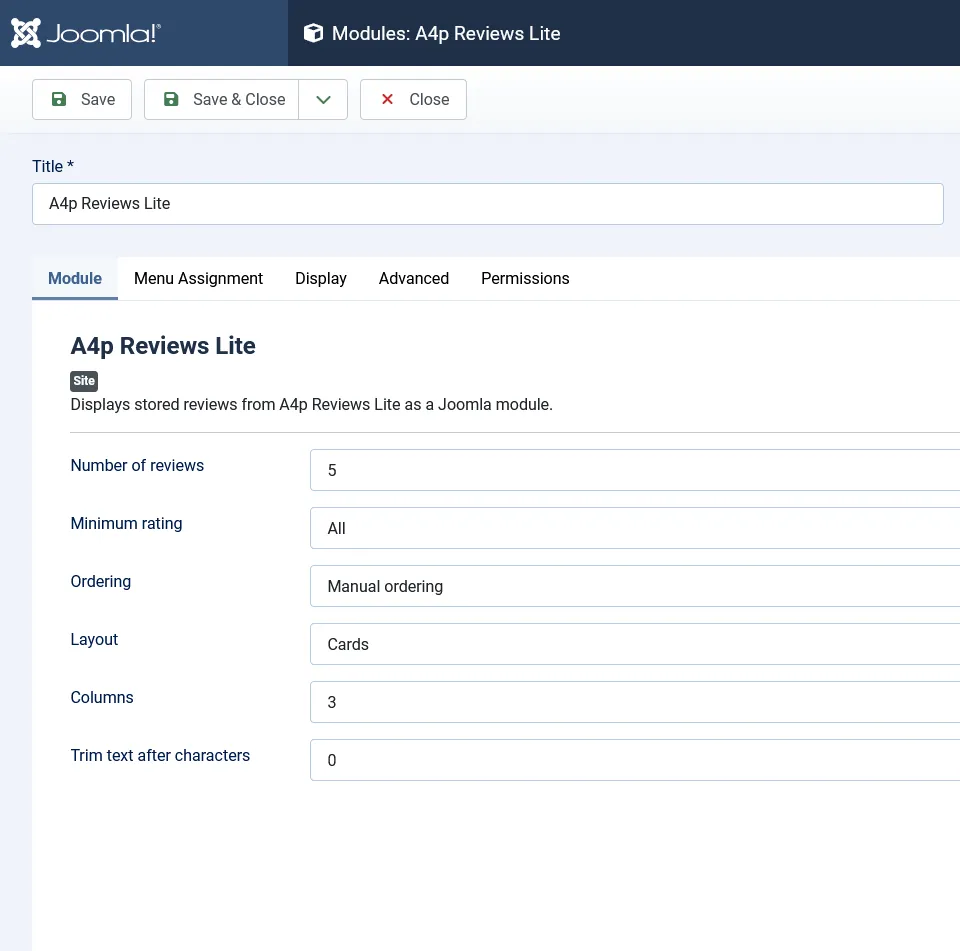
14.2 Review Quantity
Set the number of published reviews to display.
The permitted range is 1 to 50. The result is limited by the number of published reviews stored locally.
14.3 Minimum Rating
Choose the lowest rating that should be included:
- All ratings
- 1 star or higher
- 2 stars or higher
- 3 stars or higher
- 4 stars or higher
- 5 stars only
Use the filter responsibly. Displaying only selected positive reviews may require transparent communication depending on the context and applicable rules.
14.4 Ordering
Available ordering options are:
- Manual ordering
- Newest first
- Oldest first
- Highest rating first
- Lowest rating first
Manual ordering uses the ordering prepared in the Joomla review manager.
14.5 Layout
Choose one of the included layouts:
Cards
Displays each review in a separate card. Suitable for landing pages and testimonial sections.
Grid
Organizes reviews in a structured multi-column presentation.
List
Places reviews below one another and works well for longer text.
Compact
Uses a reduced presentation for narrow areas or pages where review content should occupy less space.
14.6 Columns
Cards and grid layouts support one to four columns.
Choose the number according to:
- Available content width
- Typical review length
- Template breakpoints
- Mobile readability
Always test the chosen layout on desktop, tablet and mobile devices.
14.7 Text Limit
Set the maximum displayed review-text length from 0 to 1000 characters.
A value of 0 displays the complete stored text. A positive value shortens longer text and adds an ellipsis.
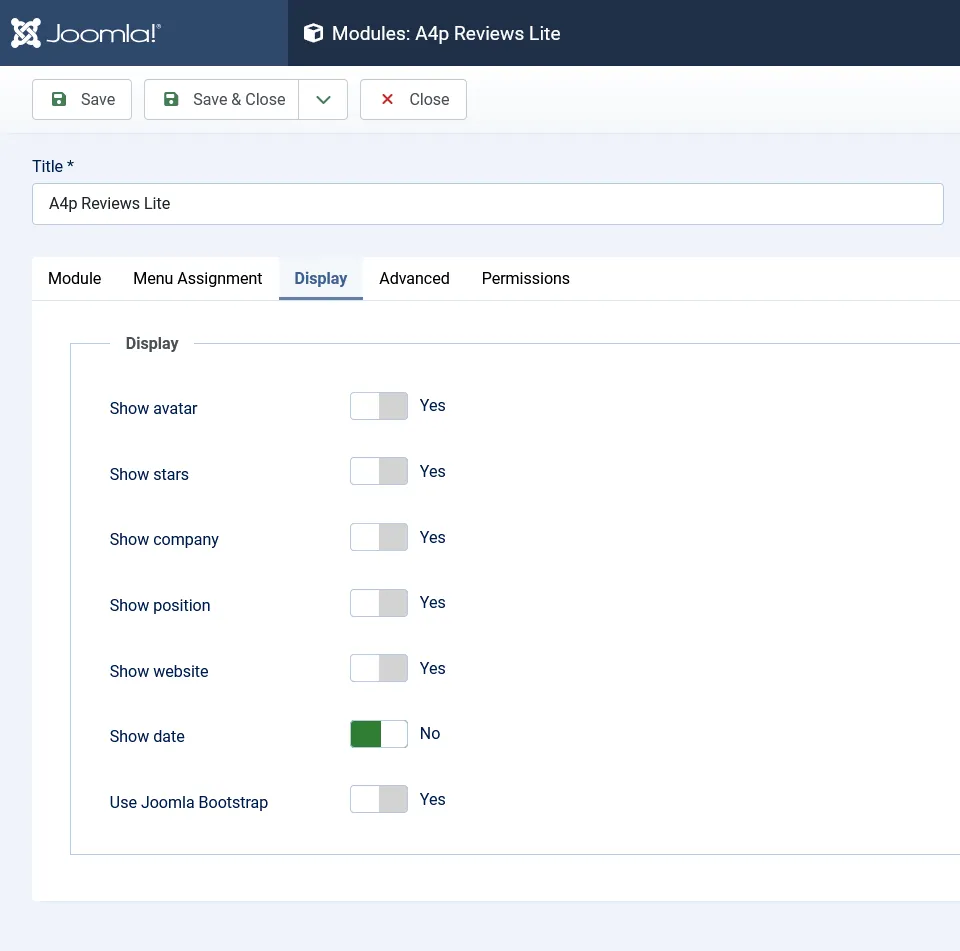
14.8 Display Options
The module can independently show or hide:
- Profile image
- Rating
- Company
- Position
- Website
- Date
Only enable fields that contain useful and authorized information.
14.9 Joomla Bootstrap
The module can load Joomla’s Bootstrap assets.
Leave this enabled when the active template does not already provide the necessary Bootstrap styling. Disable it if the template loads compatible Bootstrap assets and duplicate loading causes conflicts.
14.10 Module Preview Checklist
After publishing the module, verify:
- Only published reviews appear
- Minimum-rating filtering is correct
- Ordering is correct
- Images load locally
- Long text is handled correctly
- Website links open safely
- The layout works on mobile
- No unnecessary Google request occurs during ordinary page loading
15. Displaying Reviews with YOOtheme Pro Dynamic Content
The YOOtheme Pro integration is provided by the system plugin.
15.1 Requirements
- YOOtheme Pro installed and active
- System – A4p Reviews Lite enabled
- At least one published review
- A valid page, template or layout editable with YOOtheme Pro
15.2 Create a Review Collection
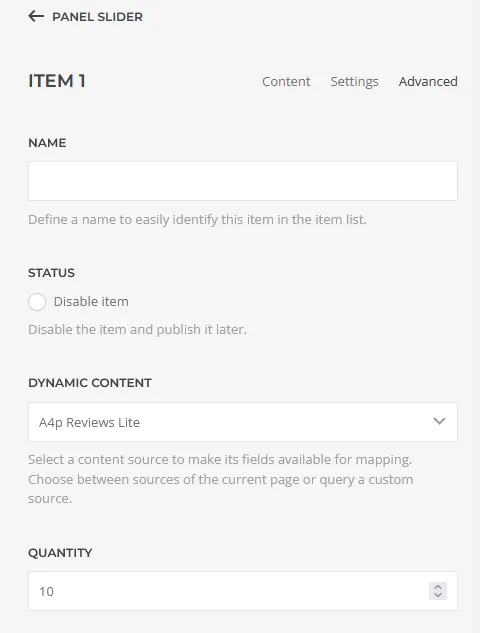
- Open the intended page or template in YOOtheme Pro.
- Open the Dynamic Content configuration.
- Add a new source.
- Select the addons4.pro source group.
- Select A4p Reviews Lite.
- Enter the required quantity.
- Save the source.
- Add the YOOtheme Pro element that should repeat for the collection.
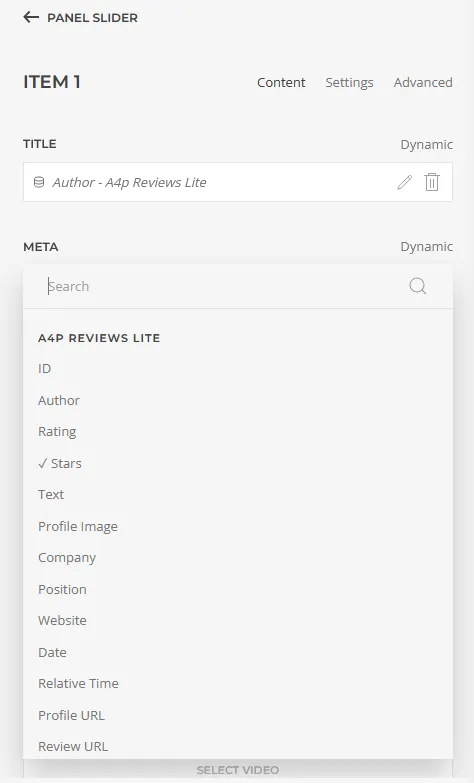
- Map the review fields to the element fields.
- Save and preview the page.
The collection contains published reviews only. Reviews are supplied according to the ordering prepared in Joomla, followed by their review date and internal ID where required for stable ordering.
15.3 Select One Specific Review
A separate Dynamic Content query can load an individual review.
- Find the review ID in the Joomla review manager.
- In YOOtheme Pro, add the individual A4p Review Lite source.
- Enter the review ID.
- Map the required fields.
- Save and test the layout.
An unpublished review is not returned to the frontend.
15.4 Available Dynamic Content Fields
ID
The local Joomla review ID.
Author
The stored display name of the reviewer.
Rating
The numerical review rating.
Stars
A formatted star representation suitable for text-based output.
Text
The stored review text. YOOtheme Pro text filters can be used to limit or preserve the text where supported.
Profile Image
The locally stored profile image path where available.
Company
Locally managed company information.
Position
Locally managed professional position.
Website
The normalized website address associated with the locally managed review record.
Date
The stored review date. YOOtheme Pro date filters can be applied where supported.
Relative Time
The relative time supplied with the imported data, where available.
Profile URL
The available reviewer-profile address, where supplied and stored.
Review URL
The individual review address where Google supplies and the component stores a suitable value. Do not assume that this field is available for every imported record.
Synchronization State
The local synchronization state of the review.
15.5 Example Field Mapping
For a testimonial card:
- Image → Profile Image
- Title → Author
- Meta → Company and Position
- Content → Text
- Badge or secondary text → Stars
- Link → Website or an available source URL
- Date → Date
For a review grid:
- Create an A4p Reviews Lite collection.
- Add a Grid element.
- Set the Grid content to the collection.
- Map the author to the title.
- Map the review text to the content.
- Map the profile image to the image field.
- Map the rating or stars to a meta field.
- Add company and position as secondary information.
- Configure responsive columns.
- Preview every breakpoint.
15.6 Empty Fields
Not every Google response contains every field. Company, position, website and internal notes are local editorial fields and may initially be empty.
Design the YOOtheme layout so that empty optional fields do not leave unnecessary separators or blank areas.