You purchase the product and receive access for 12 months to download new or updated versions from your customer account. After 12 months, the subscription renews automatically unless you cancel it in your customer account. You can also see in your customer account how long you still have access to the files.
For all extensions and add-ons labeled “YOOtheme Pro Extensions,” the “YOOtheme Pro Theme” is required. This theme is not included with our extensions and must be subscribed to and downloaded separately from the website yootheme.com. Without this template, the extensions and addons cannot be used.
If you are working with YOOtheme Pro on Joomla, you may have noticed the “Back to Default Editor” link when editing articles that contain YOOtheme Builder content.
While this feature can be useful in some situations, it can also create problems for website administrators, editors, and clients. Accidentally switching back to the default Joomla editor may affect the content structure or lead to confusion when managing pages built with YOOtheme Pro.
In this tutorial, you’ll learn how to hide the “Back to Default Editor” link in YOOtheme Pro using a simple CSS snippet that works with Joomla 5 and Joomla 6.
Why Hide the “Back to Default Editor” Link?
Many Joomla websites are managed by multiple users, including editors, content managers, and clients. In these environments, it is often desirable to limit access to features that are not required for daily content editing.
Hiding the “Back to Default Editor” link can help to:
Prevent accidental changes to YOOtheme Builder content
Reduce confusion for non-technical users
Create a cleaner administration interface
Protect website layouts from unintended modifications
Improve the editing workflow for clients and editors
Since YOOtheme Pro is often used to build complex page layouts, restricting unnecessary options can make content management safer and more efficient.
CSS Snippet
In Joomla 5 and Joomla 6, go to the active administrator template (“Atum”) and check whether a file named “user.css” exists in the CSS folder (the path is “/media/templates/administrator/atum/css/user.css”). If the file does not yet exist, create it.
After saving the CSS file and clearing your Joomla cache, the link will no longer be visible in the article editing interface.
How the CSS Works
The CSS selector targets the specific link used by YOOtheme Pro to switch from the Builder interface back to the standard Joomla editor.
By applying:
display: none !important;
the link is hidden from view while all other YOOtheme Pro functionality remains fully operational.
This approach does not modify Joomla core files or YOOtheme Pro files, making it a safe and update-friendly solution.
Compatibility
This solution has been tested with:
Joomla 5
Joomla 6
YOOtheme Pro
Because the modification relies only on CSS, it is unlikely to be affected by Joomla updates. However, if YOOtheme changes the underlying HTML structure in future releases, the selector may need to be adjusted.
Alternative Approaches
Depending on your project requirements, you may also consider:
Restricting user permissions through Joomla ACL
Limiting backend access for editors
Creating custom administrator styles
Using dedicated user roles for content editors
For most websites, however, the CSS solution is the quickest and easiest way to remove the “Back to Default Editor” link.
Conclusion
If you want to simplify the Joomla administration experience and prevent accidental changes to YOOtheme Builder content, hiding the “Back to Default Editor” link is a practical solution.
Using a simple CSS rule, you can keep the YOOtheme Pro editing environment cleaner and more user-friendly without modifying core files or affecting future updates.
This method is lightweight, easy to implement, and suitable for both Joomla 5 and Joomla 6 websites.
FAQ
How do I hide the Back to Default Editor link in YOOtheme Pro?
Add a custom CSS rule to your Joomla administrator template that targets the link and hides it using display: none.
Does this method work with Joomla 6?
Yes. The CSS solution works with both Joomla 5 and Joomla 6.
Will hiding the link affect YOOtheme Pro functionality?
No. The Builder remains fully functional. Only the link is hidden.
Do I need to modify Joomla core files?
No. The solution uses custom CSS and is update-safe.
Can I restore the link later?
Yes. Simply remove the custom CSS rule and the link will appear again.
Sometimes you need a completely distraction-free page without navigation, header, or footer elements. This is especially useful for landing pages, sales pages, maintenance pages, thank-you pages, event registrations, and embedded content.
If you are using YOOtheme Pro with Joomla, you can easily create a page without the default website header and footer by combining a custom page class with a small CSS snippet.
In this tutorial, you will learn how to create a clean page layout without header and footer in YOOtheme Pro for Joomla 5 and Joomla 6.
Why Create a Page Without Header and Footer?
A standard website layout usually includes navigation menus, branding elements, sidebars, and footer content. While these elements are important for most pages, there are situations where removing them can improve user experience and conversion rates.
Common use cases include:
Landing pages for marketing campaigns
Product launch pages
Webinar registration pages
Coming soon pages
Maintenance pages
Thank-you pages after form submissions
Embedded content displayed inside iframes or modal windows
By removing unnecessary distractions, visitors can focus entirely on the content and call-to-action.
Step 1: Create a New Article
Navigate to:
Dashboard → Content → Articles → New
Create your new Joomla article and save it.
Step 2: Create a Menu Item
Navigate to:
Dashboard → Menus → Your Menu → New
Configure the menu item as follows:
Menu Item Type → Articles → Single Article
Select the article you created
Define whether the menu item should be visible in the menu
Save your settings.
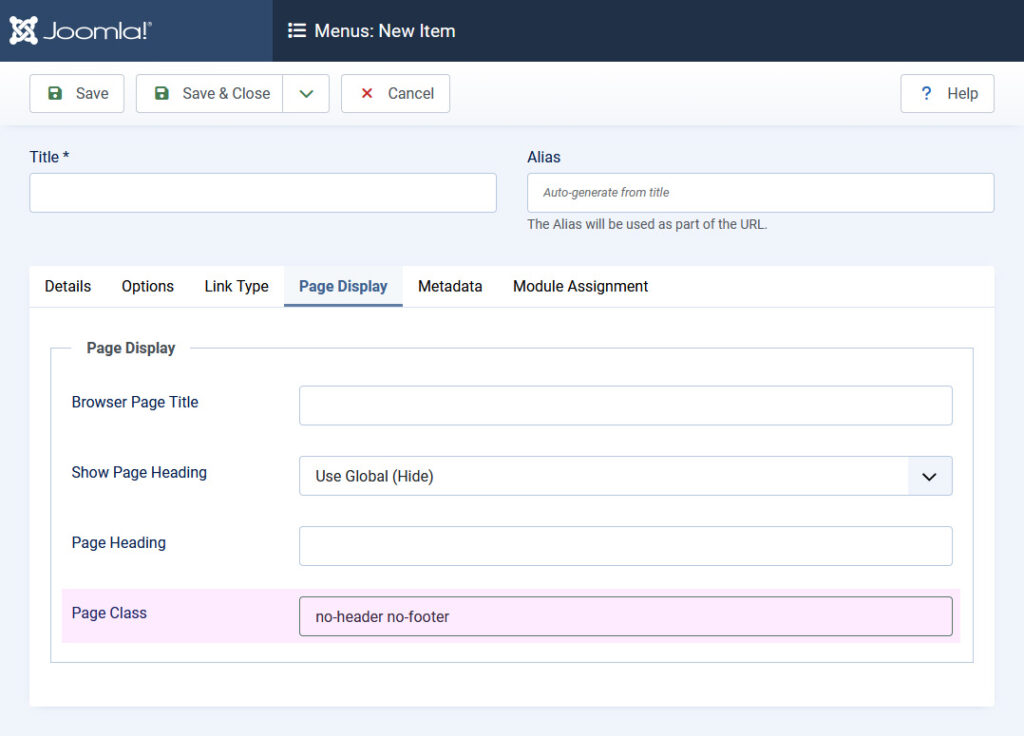
Step 3: Add a Custom Page Class
Open the Page Display tab and enter the following Page Class:
no-header no-footer
This custom class allows us to target the page using CSS.
To change the cursor display for non-clickable elements in the main menu, go to YOOtheme – Settings – Custom Code and enter the following under CSS/Less:
You are currently viewing a placeholder content from Turnstile. To access the actual content, click the button below. Please note that doing so will share data with third-party providers.