A4p Reviews Lite Documentation
A4p Reviews Lite – Documentation
Google Reviews for Joomla and YOOtheme Pro
Extension version: 2.0.4
Joomla: 6.x
PHP: 8.3 or later
Languages: English and German
Index

1. Introduction
A4p Reviews Lite imports reviews provided by the Google Places API into Joomla. Imported reviews are stored in the local Joomla database and can be managed like structured website content.
Reviews can be displayed in two ways:
- Through the included Joomla module
- Through YOOtheme Pro Dynamic Content<
YOOtheme Pro is optional. The Joomla module can be used on a conventional Joomla website without YOOtheme Pro.
The extension package contains:
- A4p Reviews Lite component
- A4p Reviews Lite Joomla module
- A4p Reviews Lite system plugin
- A4p Reviews Lite task plugin
The component manages settings, imported reviews, synchronization and privacy information. The module provides ready-made frontend layouts. The system plugin handles licensing and YOOtheme Pro integration. The task plugin enables automated synchronization through Joomla Scheduled Tasks.
2. Important Google API Limitation
Google controls the reviews returned by the Places API.
The API currently returns a maximum of five reviews for a place. These reviews are selected and sorted according to Google’s relevance criteria. A4p Reviews Lite can import and manage only the reviews included in this response.
The extension cannot:
- Retrieve the complete review history of a Google Business Profile
- Select which reviews Google returns
- Request additional review pages
- Reconstruct reviews that are not present in the API response
- Control changes to Google’s API, pricing or quotas
An import limit configured inside the component restricts the available Google response further. Selecting “All” means all reviews contained in the current API response, not every review published on the business profile.
3. Requirements
Joomla Server
- Joomla 6.x
- PHP 8.3 or later
- MySQL or MariaDB supported by Joomla
- PHP Sodium extension
- Outgoing HTTPS connections
- Joomla extension-installation permission
- Joomla plugin-management permission
- Write access to images/a4p/reviews-lite
- Google account
- Google Cloud project
- Billing enabled for the project
- Places API (New) enabled
- Dedicated Google API key
- Correct Google Place ID
External Connections
The server must be able to contact:
- places.googleapis.com
- approved googleusercontent.com subdomains when profile images are downloaded
- the addons4.pro license and update services
Optional Software
- YOOtheme Pro for Dynamic Content output
- Joomla Scheduled Tasks for automatic synchronization
- Server cron or another reliable scheduler trigger
4. Purchasing and Downloading the Product
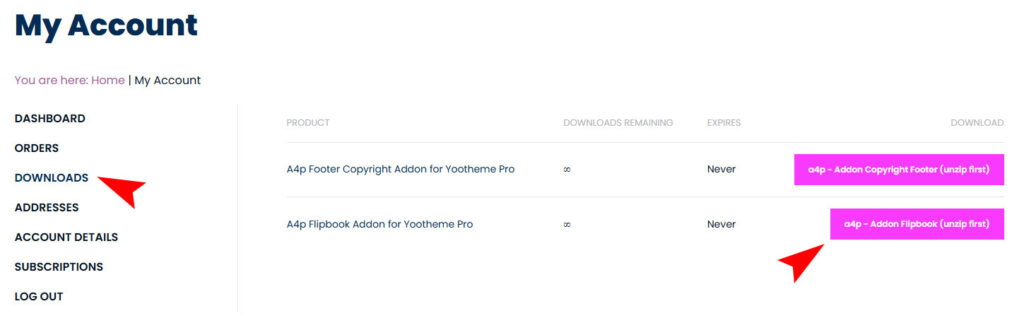
- Open the A4p Reviews Lite product page on addons4.pro.
- Select the available license option.
- Add the product to the cart.
- Complete the checkout process.
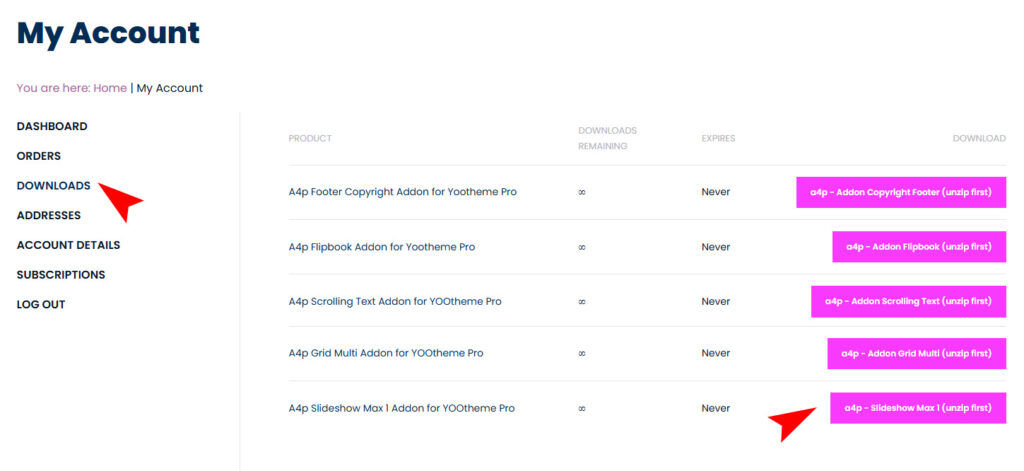
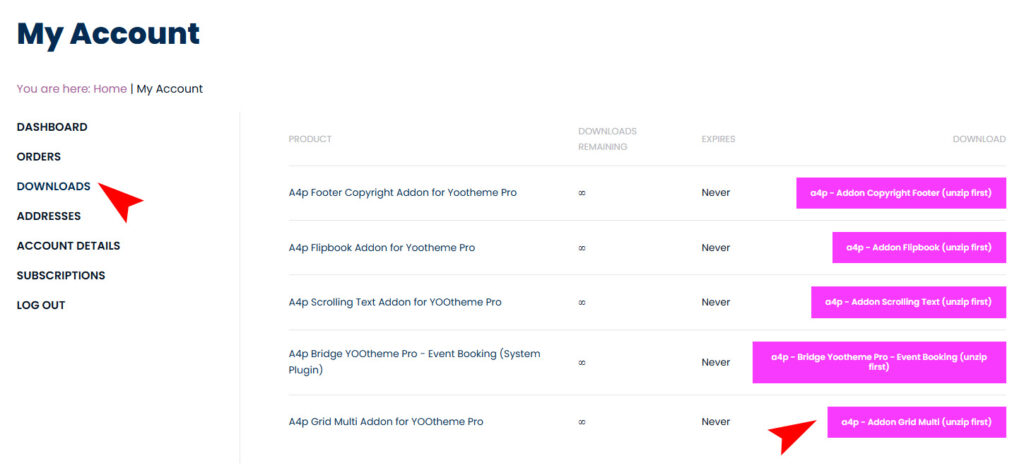
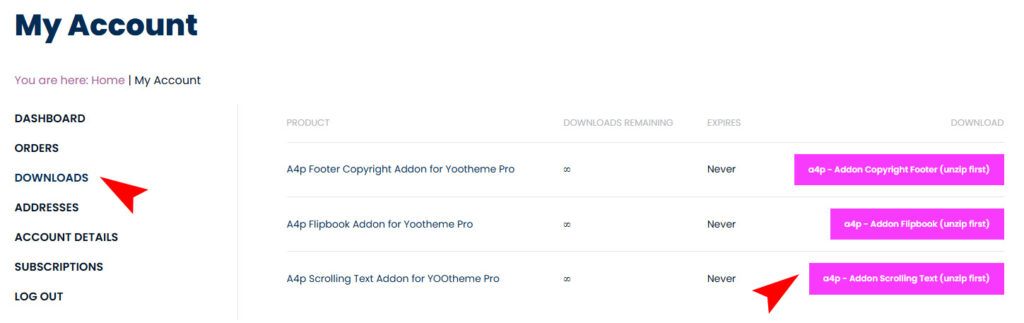
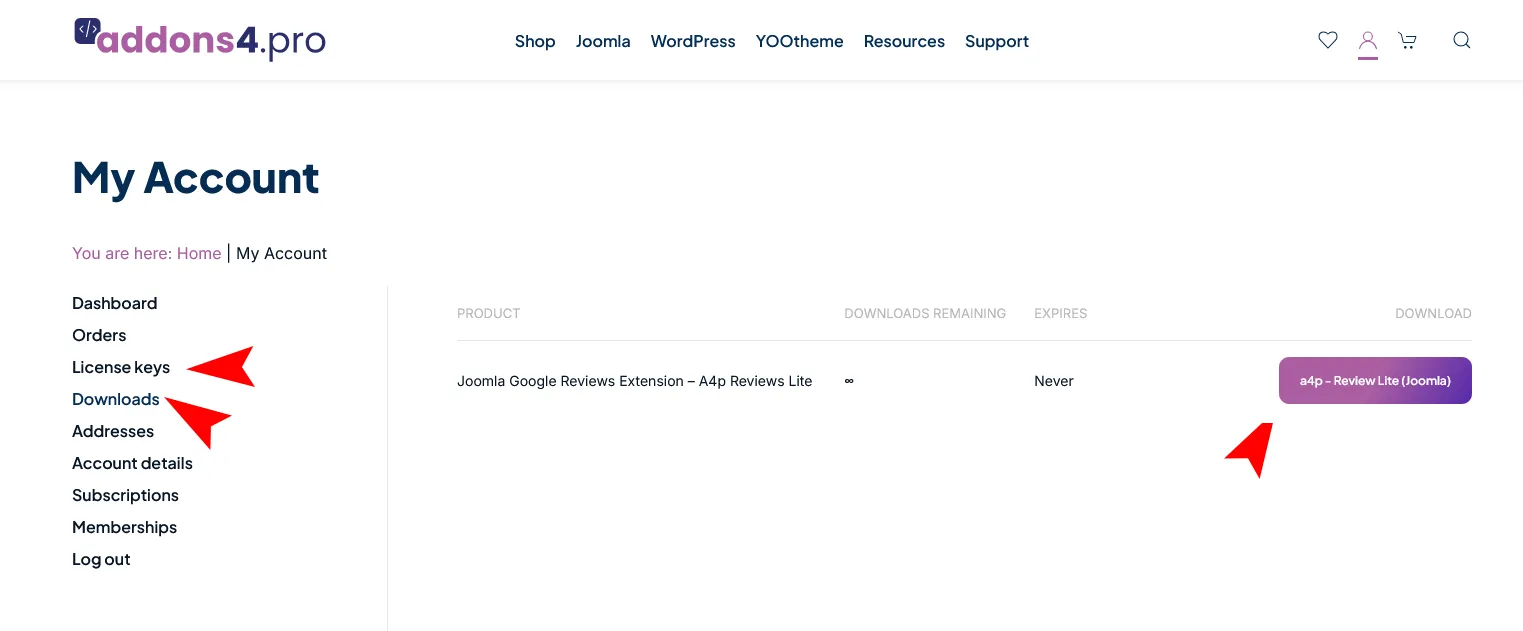
- Sign in to your addons4.pro customer account.
- Open the downloads or orders section.
- Download the complete Joomla installation package.
- Copy the license key associated with the purchase.
Keep the original ZIP package intact. Joomla installs the complete package and its included extensions automatically.
Do not separately upload the internal ZIP packages unless addons4.pro support specifically instructs you to do so.
Store the license key securely. Do not publish it in screenshots, public documentation, support forums or source repositories.
5. Installing A4p Reviews Lite in Joomla
5.1 Create a Backup
Before installing or updating an extension on a production website:
- Create a database backup.
- Create a filesystem backup.
- Verify that the backup can be restored.
- If possible, test the installation on a staging copy first.
5.2 Install the Package
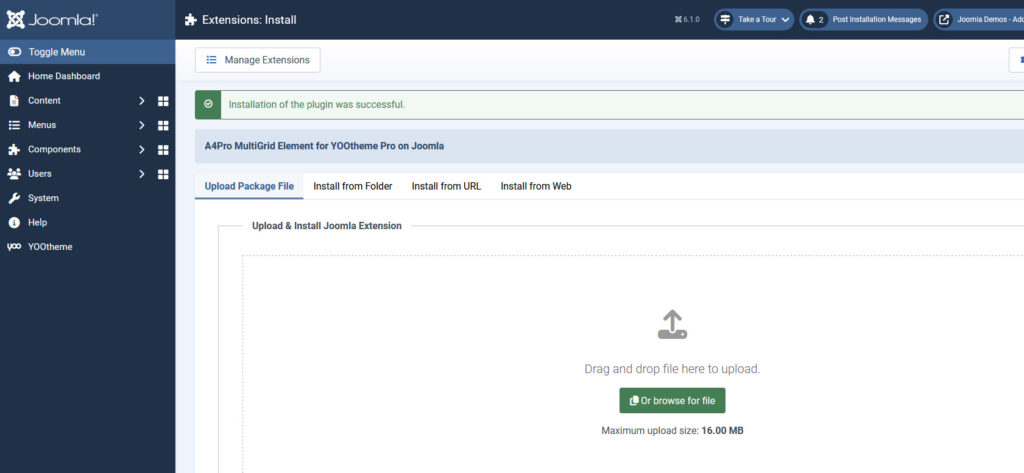
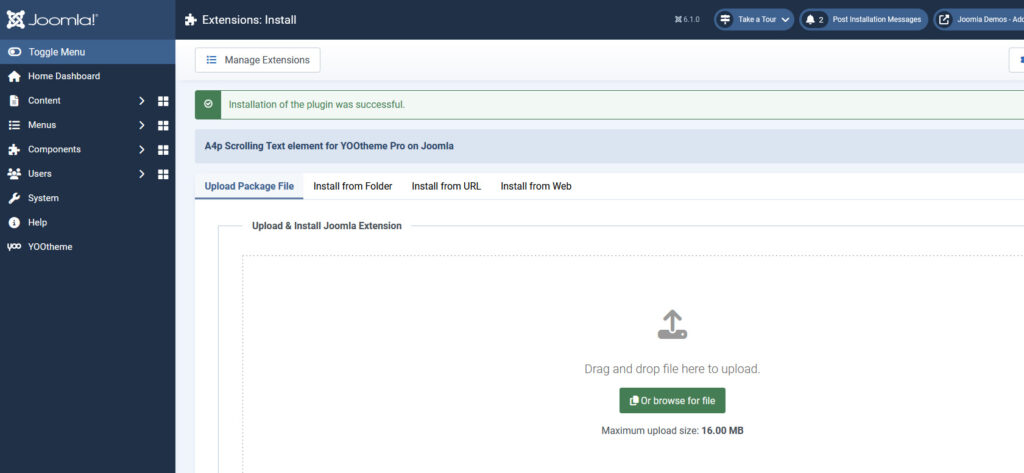
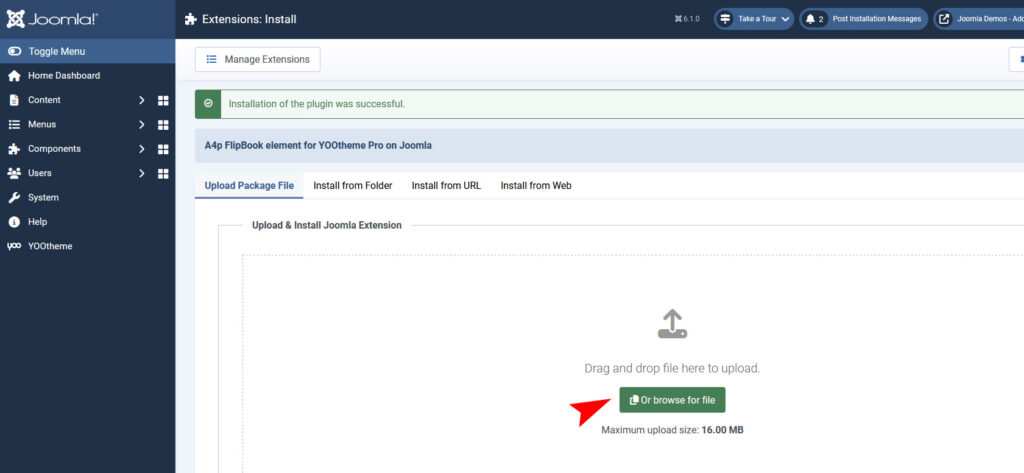
- Sign in to the Joomla administrator area.
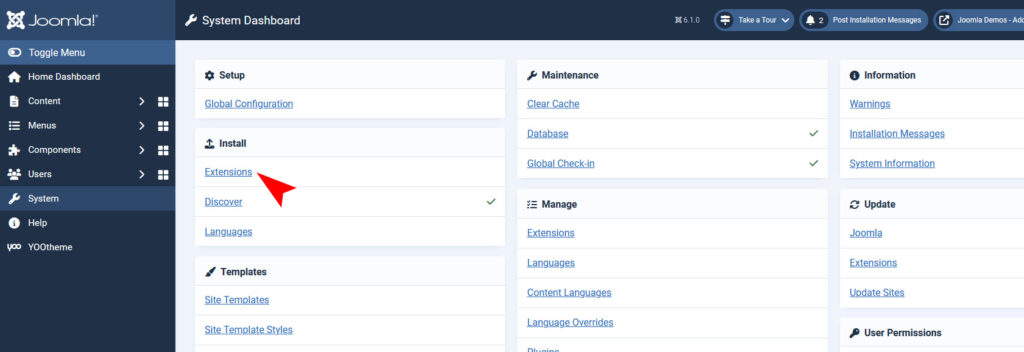
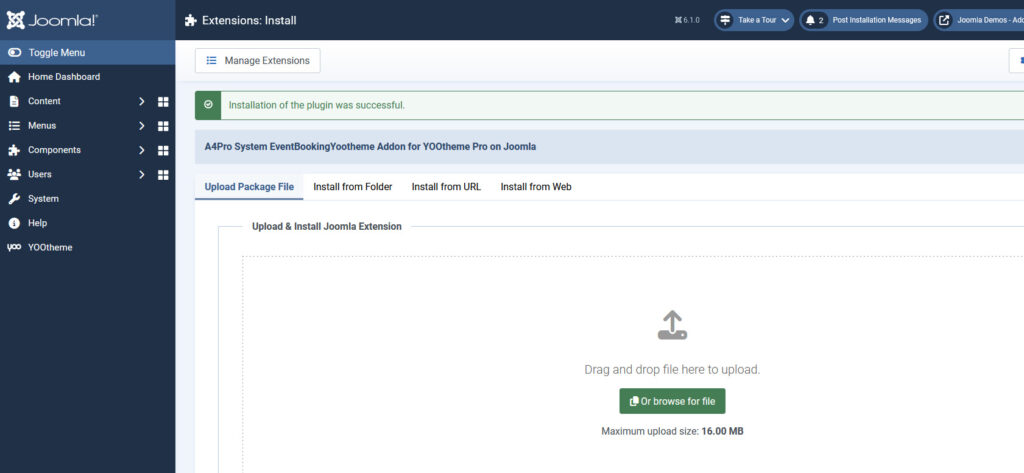
- Go to System → Install → Extensions.
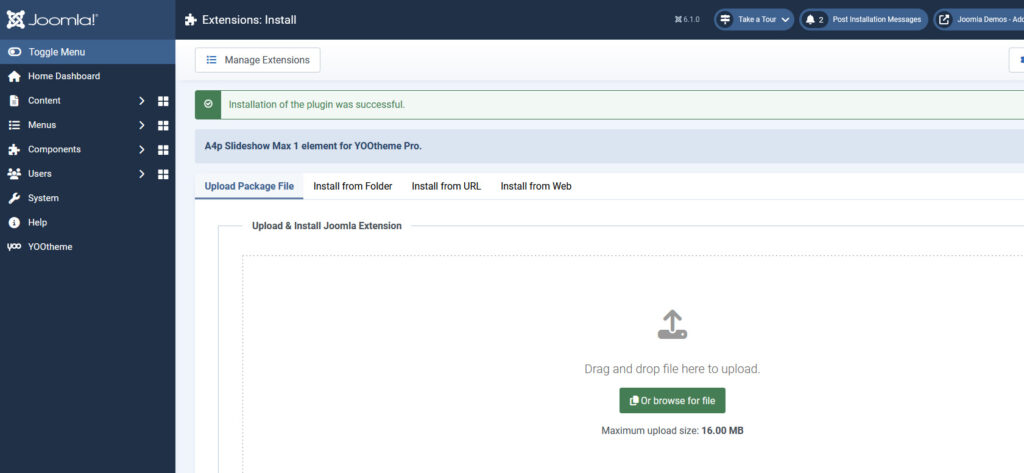
- Select the Upload Package File tab.
- Upload a4p_reviews_lite-joomla.zip.
- Wait until Joomla completes the package installation.
- Confirm that Joomla reports a successful installation.
The package installs the component, module, system plugin and task plugin together.
5.3 Verify the Installation
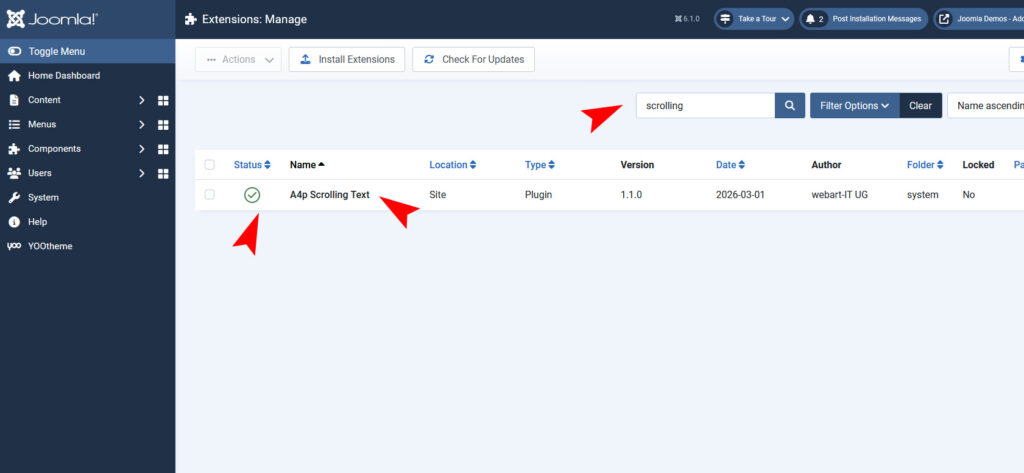
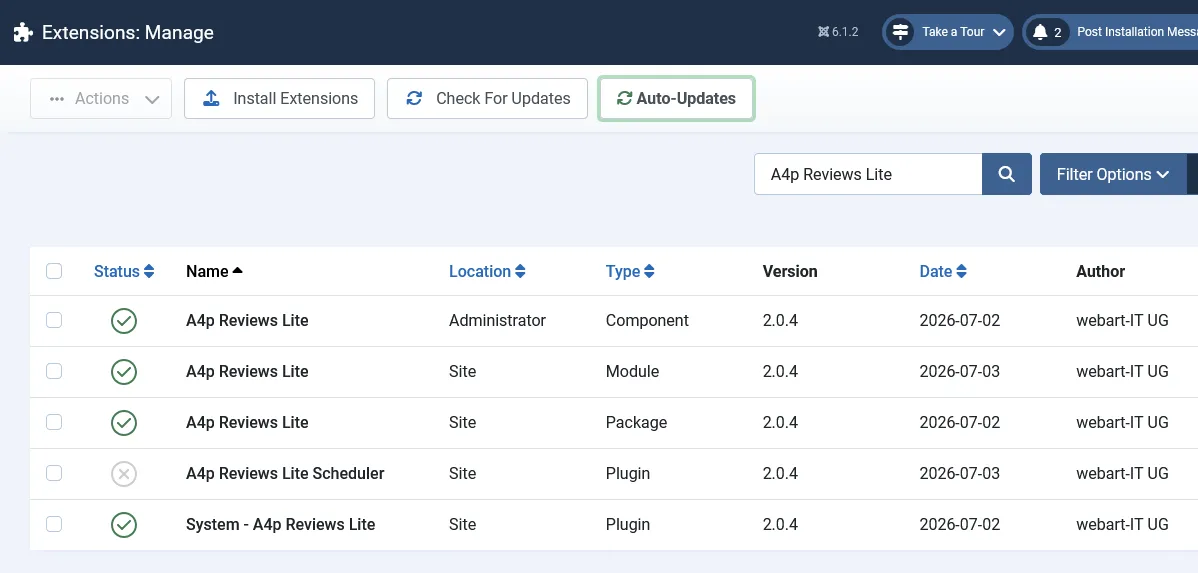
Open System → Manage → Extensions and search for A4p Reviews Lite.
Verify that the following entries exist:
- A4p Reviews Lite component
- A4p Reviews Lite site module
- System – A4p Reviews Lite
- Task – A4p Reviews Lite
If one of these entries is missing, reinstall the complete package before continuing.
6. Activating the License
The system plugin manages the package license and protected Joomla updates.
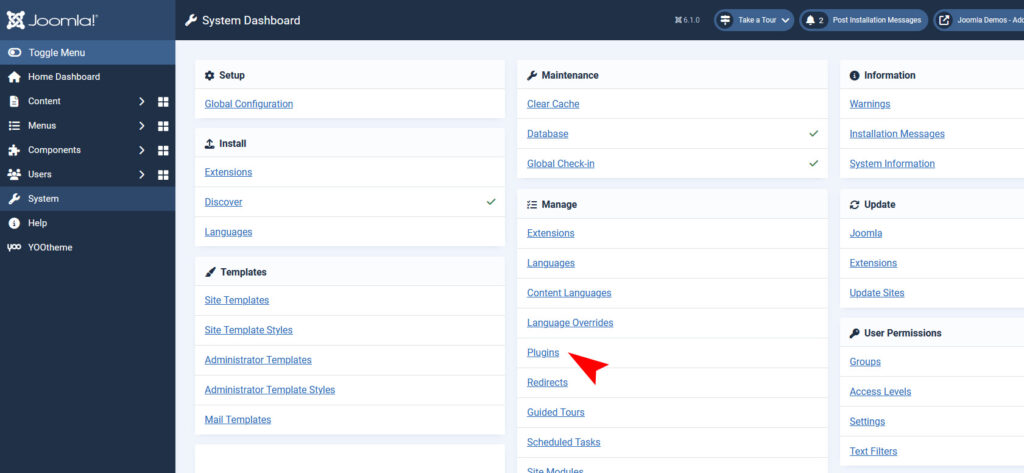
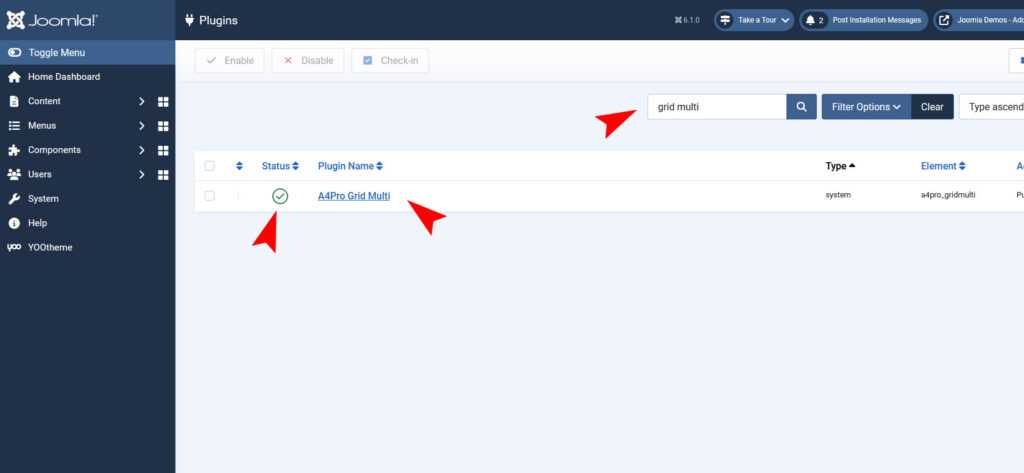
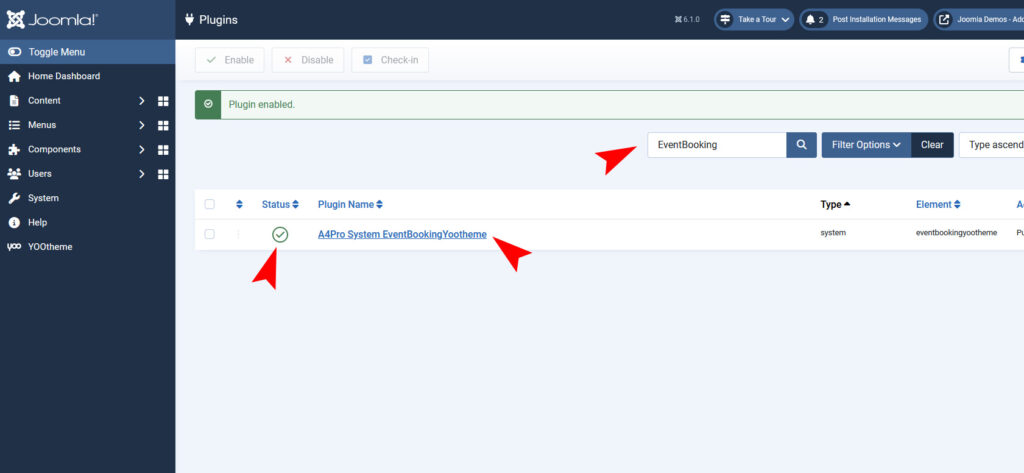
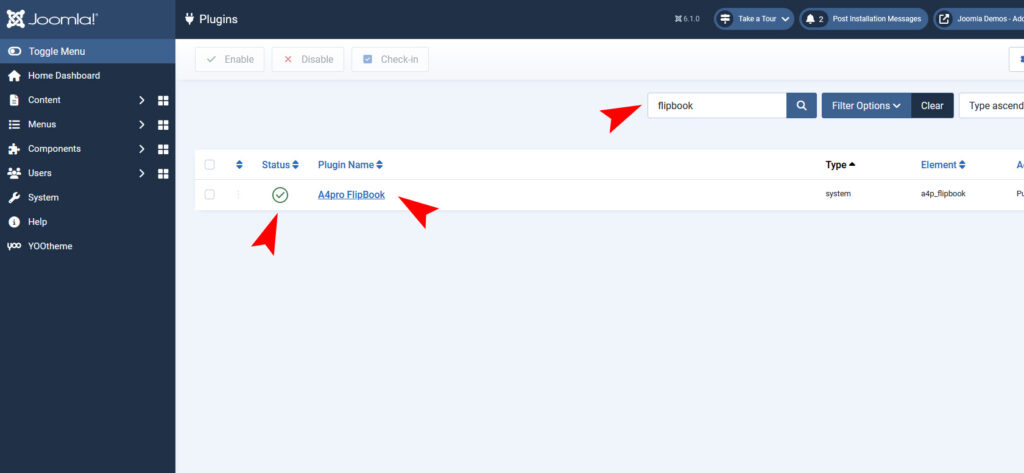
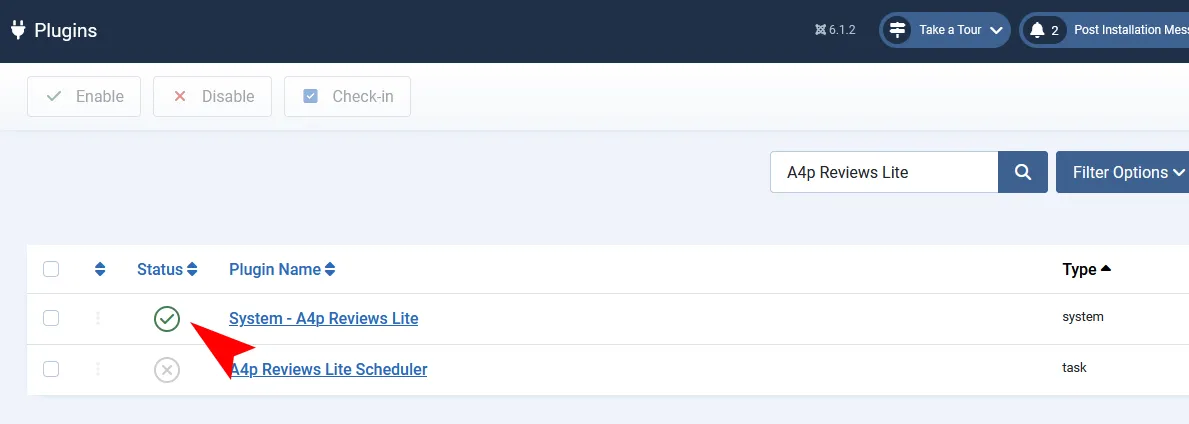
- Go to System → Manage → Plugins.
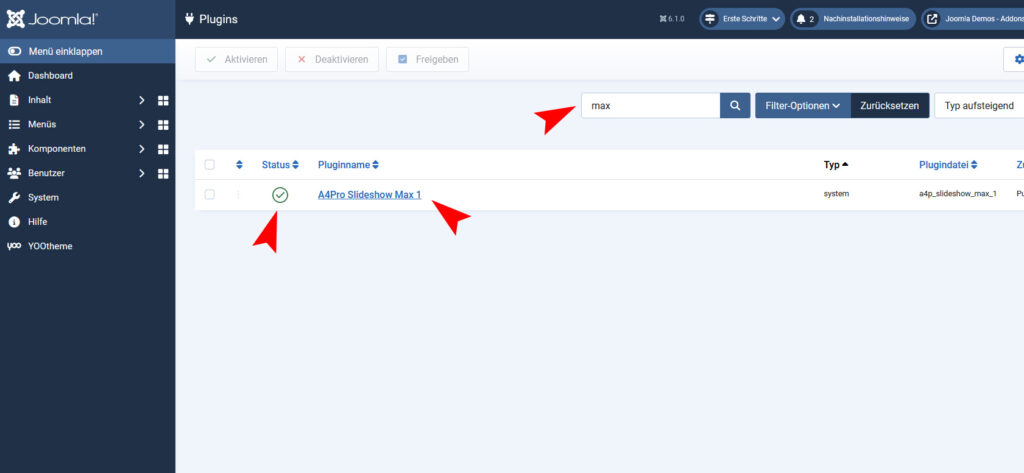
- Search for A4p Reviews Lite.
- Open System – A4p Reviews Lite.
- Set Status to Enabled.
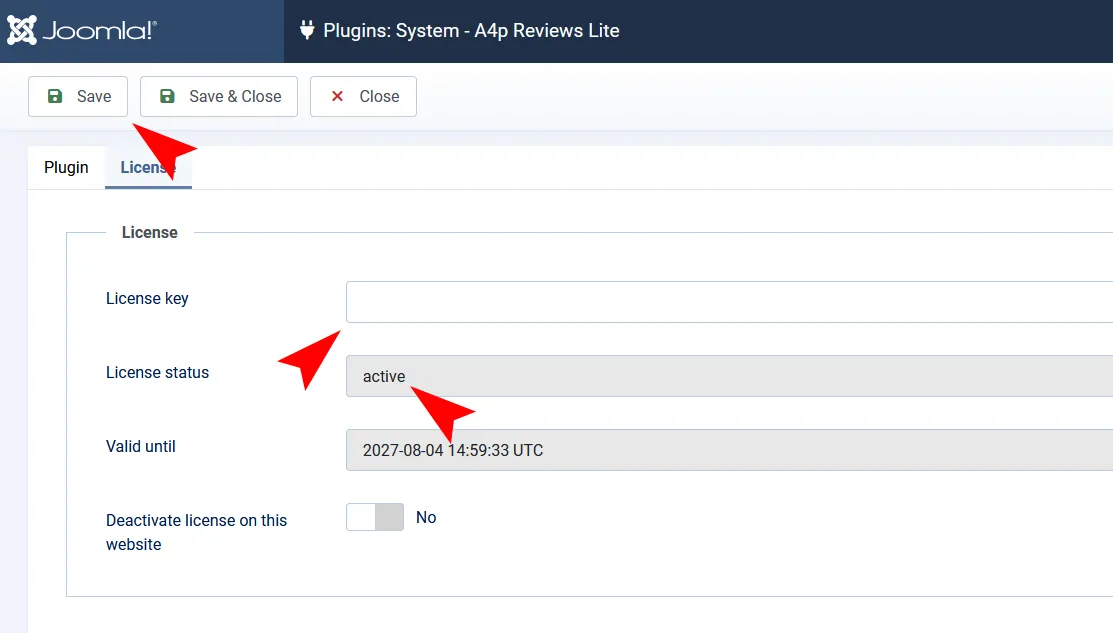
- Enter the license key from your addons4.pro account.
- Click Save.
- Wait for the activation request to finish.
- Check the displayed license status.
- Confirm that the license is active for the current website.
- Confirm the displayed expiration or entitlement information where applicable.
The license is activated for the current website address. Moving or cloning the website may require deactivation on the previous address and activation on the new one.
Deactivating a Website
To release the activation:
- Open System – A4p Reviews Lite.
- Enable the license-deactivation option.
- Save the plugin.
- Confirm that the website activation has been released.
Deactivate the license before permanently moving the website when possible.
License Troubleshooting
If activation fails, check:
- The license key was copied without spaces
- The subscription or entitlement is active
- The website can make outgoing HTTPS connections
- The current domain matches the intended activation
- The PHP Sodium extension is available
- A security extension is not blocking the request
- The addons4.pro licensing endpoint is reachable
- The maximum number of activations has not yet been reached.
7. Creating the Google Cloud Project
Google’s interface may change over time, but the underlying process remains the same.
Use the official Google Cloud Console and current Google Places API documentation when labels differ from this guide.
7.1 Create or Select a Project
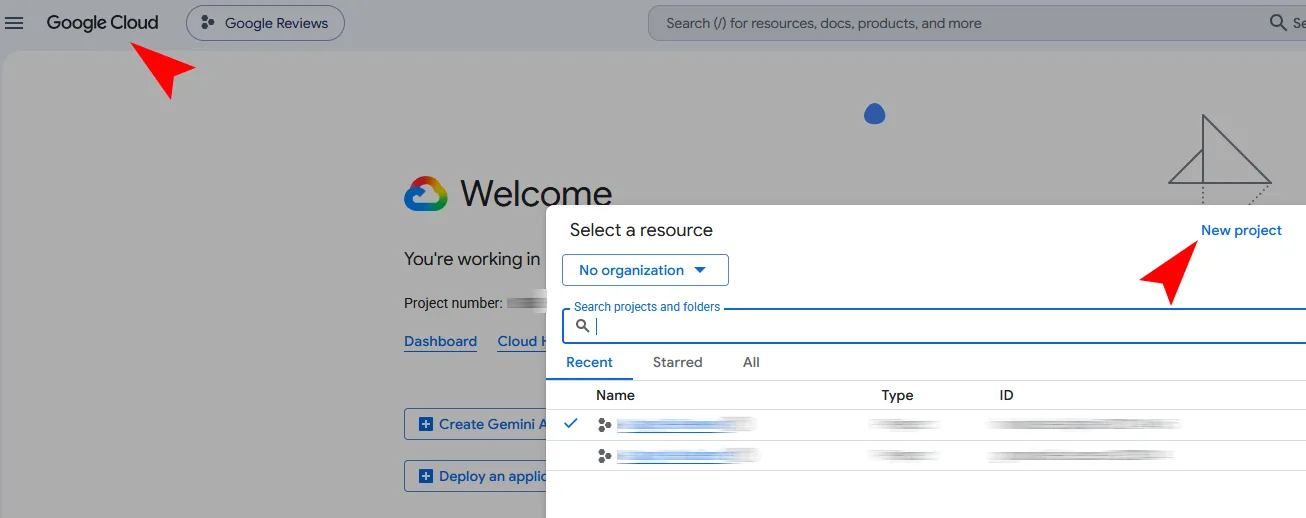
- Sign in to the Google Cloud Console.
- Open the project selector.
- Select an existing project or choose New Project.
- Enter a descriptive project name, such as Company Website Reviews.
- Assign the project to the correct organization or billing account when required.
- Create the project.
- Make sure the new project is selected before continuing.
Using a dedicated project makes quotas, credentials and billing easier to monitor.
7.2 Enable Billing
Google Maps Platform services normally require an active billing account.
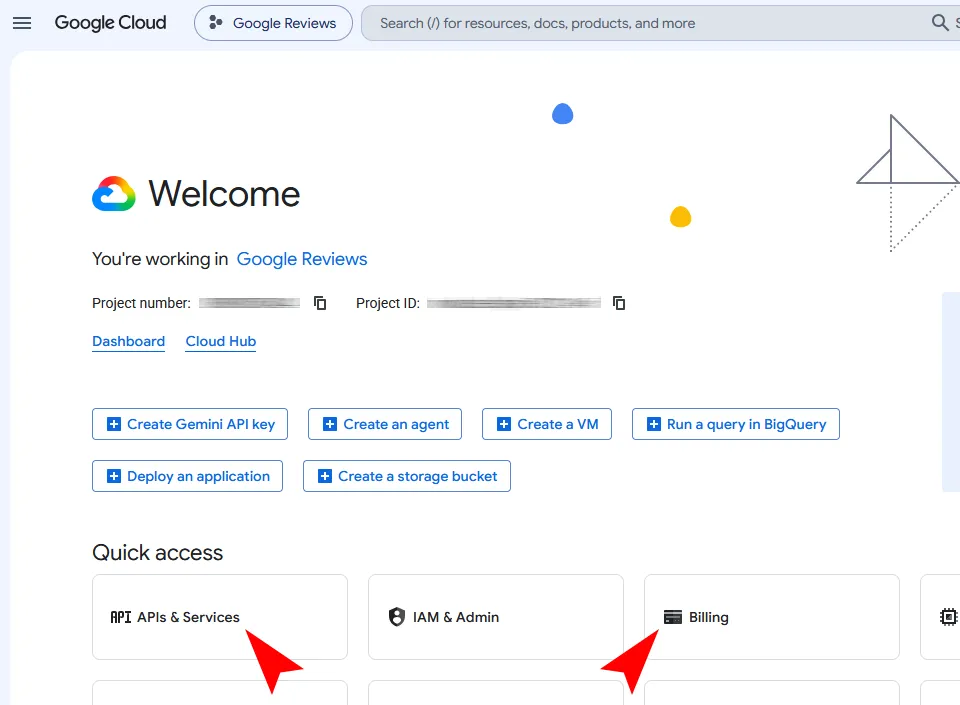
- Open Billing in Google Cloud.
- Link the project to the correct billing account.
- Verify that billing is active.
- Configure budget notifications if appropriate.
A4p Reviews Lite does not manage Google billing. Charges, quotas and credits are controlled entirely by Google.
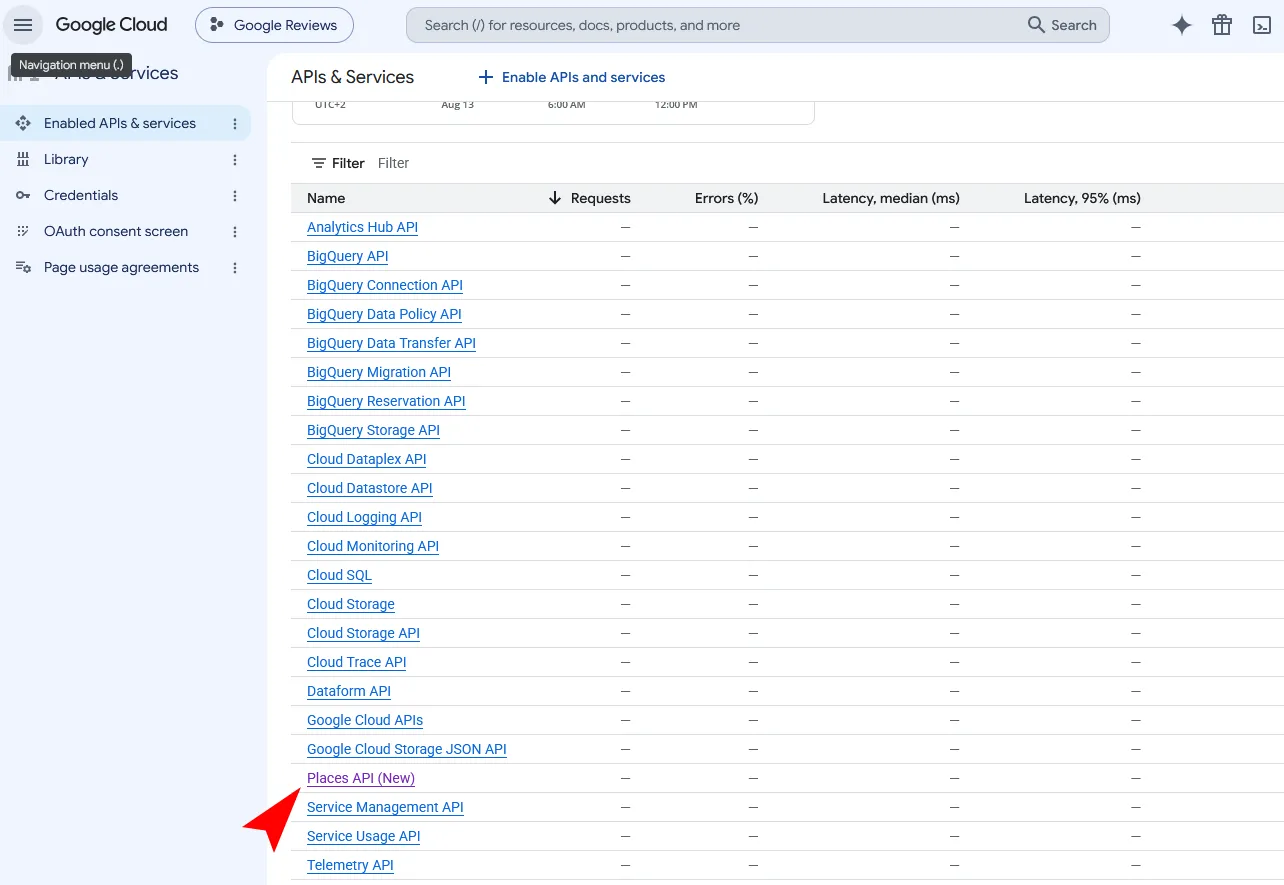
7.3 Enable Places API (New)
- Open APIs & Services → Library.
- Search for Places API (New).
- Open the result named Places API (New).
- Click Enable.
- Wait until activation is complete.
Do not rely on an older Places API being enabled. A4p Reviews Lite uses the current Places API endpoint.
8. Creating and Securing the Google API Key
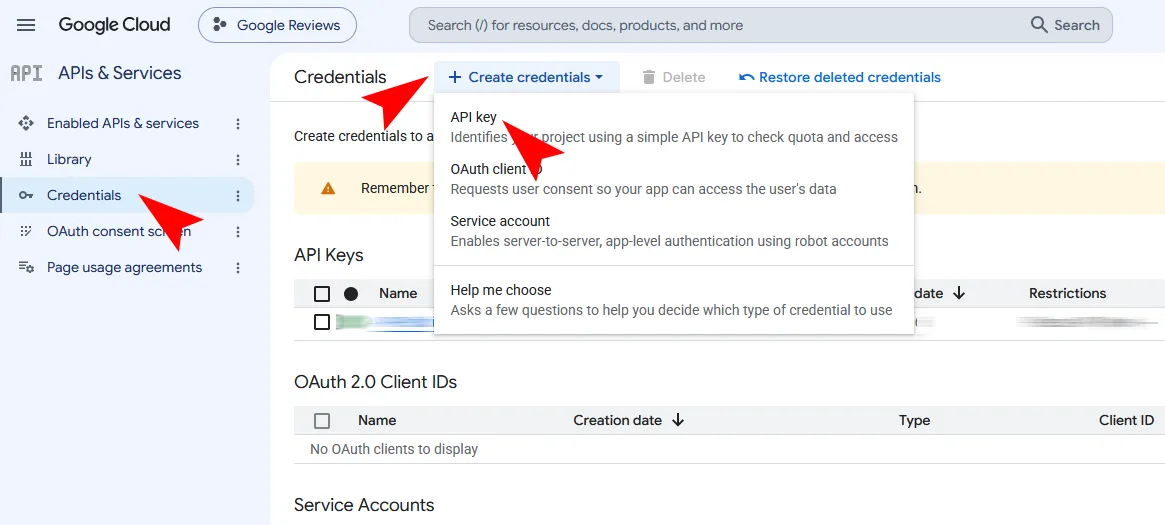
8.1 Create a Dedicated Key
- Open APIs & Services → Credentials.
- Click Create Credentials.
- Select API key.
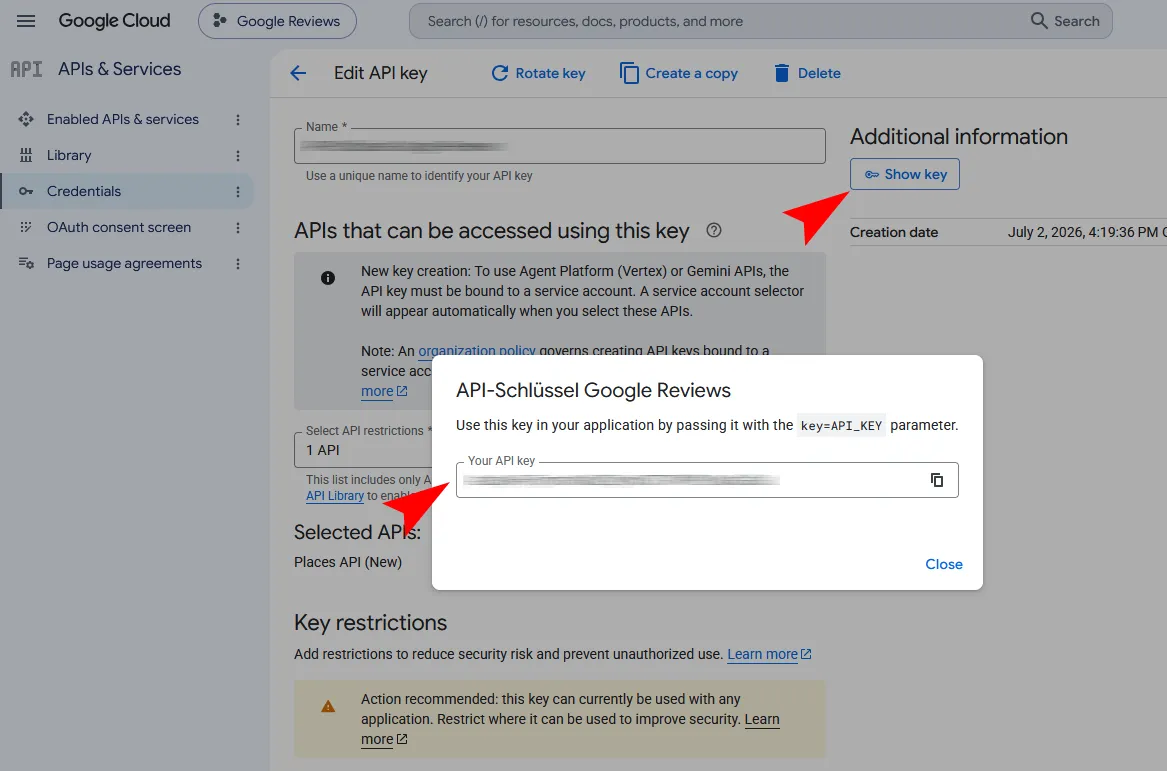
- Copy the generated key temporarily.
- Give the key a descriptive name such as A4p Reviews Lite – Production.
Use a separate key for this website instead of sharing one unrestricted key between unrelated projects.
8.2 Apply API Restrictions
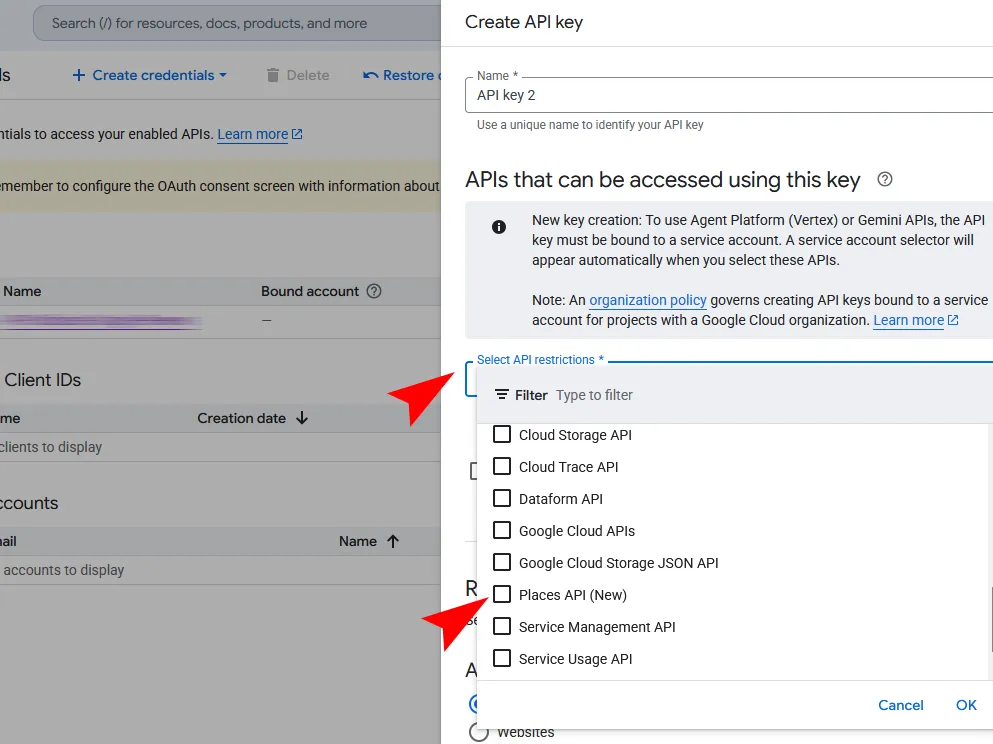
- Open the new API key.
- Find API restrictions.
- Select Restrict key.
- Allow only Places API (New).
- Save the restriction.
This prevents the key from being used with unrelated Google APIs.
8.3 Apply Application Restrictions
A4p Reviews Lite sends the API request from the Joomla server. It is not a browser-side JavaScript request.
If your hosting environment provides a fixed outgoing server IP:
- Select the IP-address restriction.
- Add the server’s public outgoing IP address.
- Save the restriction.
- Test synchronization.
Do not apply an HTTP referrer restriction to a server-side key. Referrer restrictions are intended for browser-based requests and can prevent the Joomla server from using the key.
If the hosting provider uses changing outbound IP addresses, ask the provider which restriction is appropriate. If an IP restriction is temporarily impossible, keep the API restriction limited to Places API (New), monitor usage and replace the key immediately if exposure is suspected.
8.4 Protect the Key
- Never place the key in public HTML
- Never include it in screenshots
- Never publish it in a repository
- Do not send it through unsecured communication channels
- Configure Google Cloud quotas and budget alerts
- Rotate the key if it may have been exposed
- Delete unused keys
The key is stored in the Joomla component configuration and used for server-side synchronization.
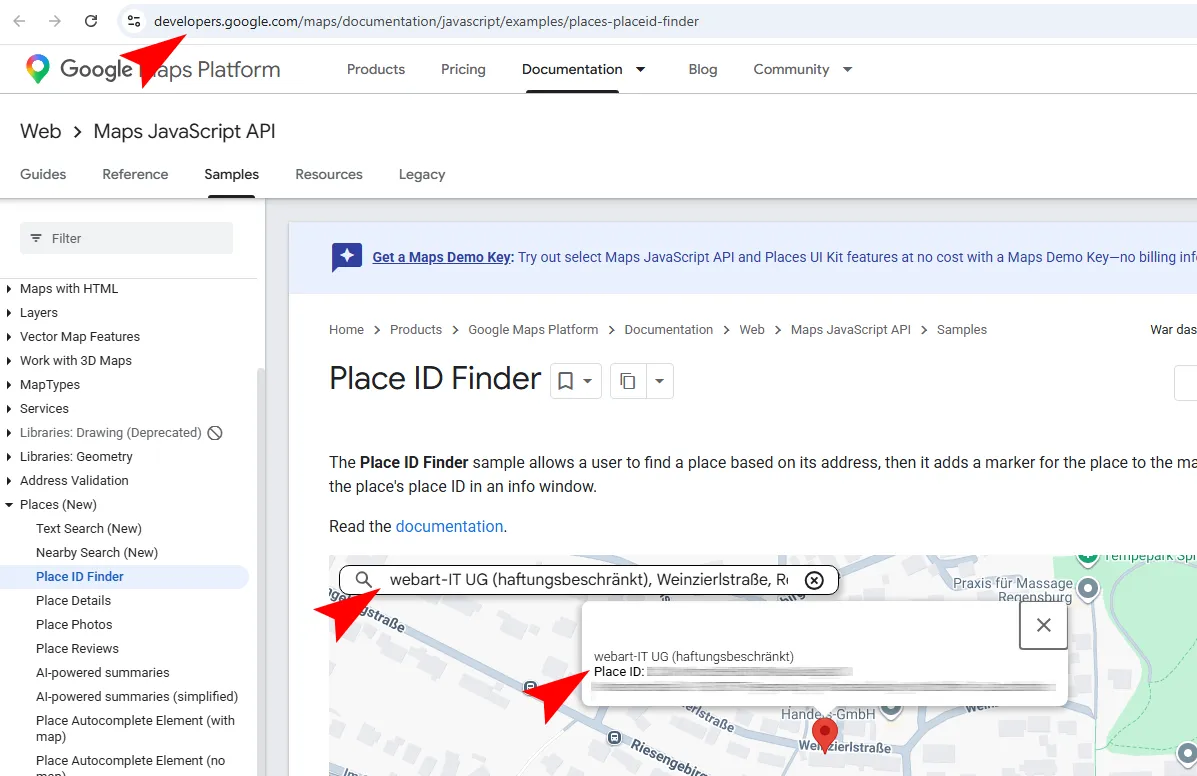
9. Finding the Google Place ID
A Place ID uniquely identifies the Google business location.
- Open Google’s official Place ID finder or the current Places documentation.
- Search for the full business name and address.
- Select the exact location.
- Copy the displayed Place ID.
- Verify that the selected entry represents the intended business location.
A Place ID is not:
- The visible Google Maps URL
- A Google Business Profile account number
- A customer ID
- A Maps CID copied from an unrelated tool
Businesses with several locations normally have a different Place ID for each location. A4p Reviews Lite should be configured with the Place ID belonging to the location whose reviews you want to import.
10. Configuring A4p Reviews Lite
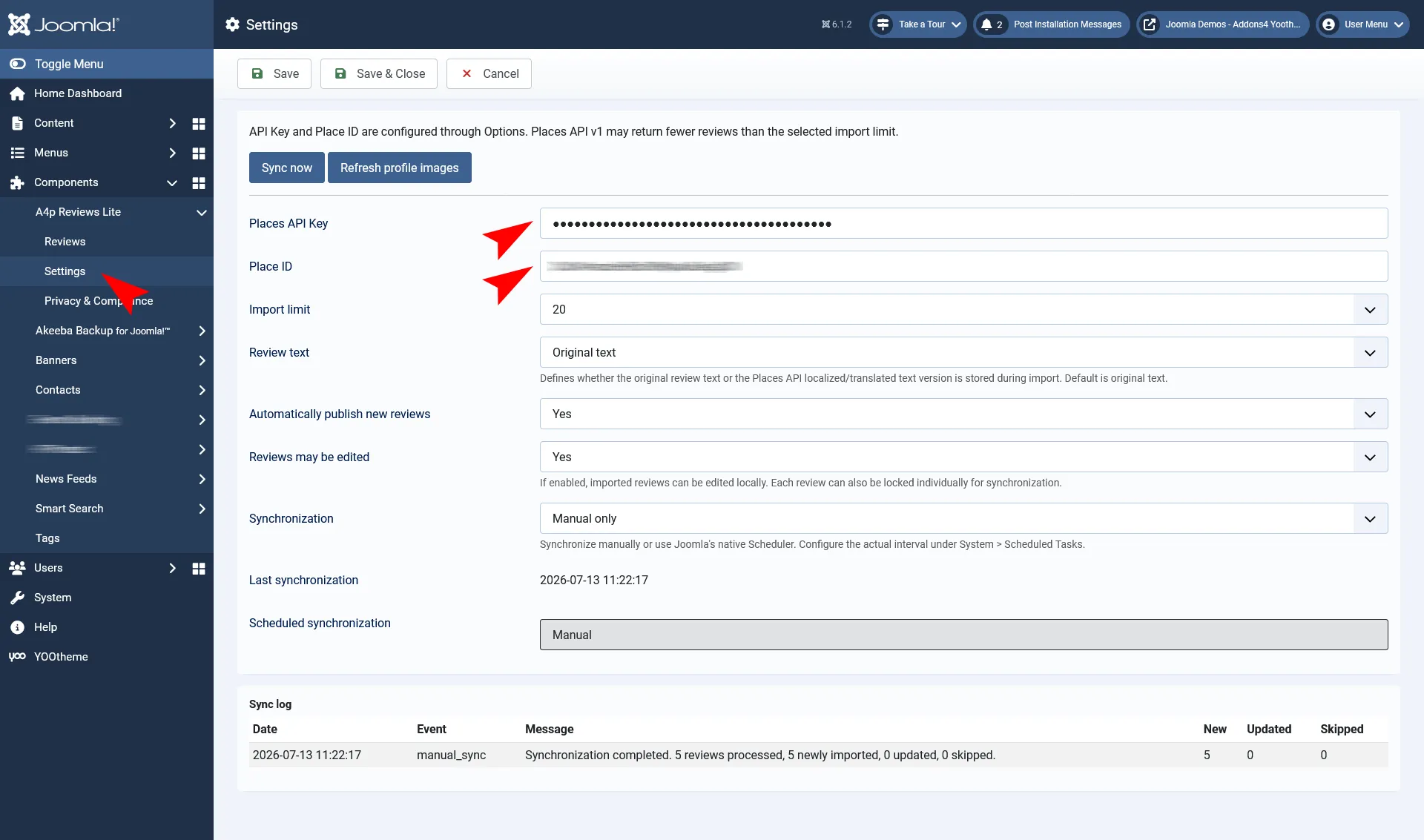
- In Joomla, open Components → A4p Reviews Lite.
- Open Settings.
- Enter the Google Places API key.
- Enter the Google Place ID.
- Configure the available import options.
- Click Save.
API Key
Enter the dedicated key created for Places API (New).
Avoid leading or trailing spaces.
Place ID
Enter the exact Place ID of the business location.
Import Limit
Choose how many reviews from the Google response should be processed.
Google currently returns no more than five reviews. A higher component limit does not cause Google to supply more than its API permits.
Review Text
Choose between the review text supplied in its original form and the translated or localized version supplied by Google, where available.
This setting does not create a new machine translation inside Joomla. It determines which available text representation from Google is used.
Automatic Publishing
When enabled, newly imported reviews are immediately published.
For a moderated workflow, disable automatic publishing. New reviews can then be checked and published manually.
Protect Local Changes
Enable this option when editorial changes to imported reviews should be preserved during later synchronization runs.
Individual records can additionally be protected through their synchronization-lock setting.
Synchronization Mode
Choose:
- Manual when synchronization should only run from the component
- Scheduler when Joomla Scheduled Tasks should be allowed to run synchronization automatically
Selecting Scheduler mode does not by itself guarantee that Joomla executes scheduled jobs. A scheduler trigger must also be active.
11. Running the First Review Import
- Confirm that the API key and Place ID have been saved.
- Open the synchronization area.
- Click Sync Now.
- Wait for the Google request and local processing to complete.
- Review the synchronization result.
- Check the number of inserted, updated and skipped records.
- Open the review manager.
- Inspect every imported review.
- Publish the records intended for frontend output.
- Open Privacy & Compliance and review the displayed status.
The synchronization request imports:
- Business rating where provided
- Total user-rating count where provided
- Reviews included in Google’s API response
- Available author information
- Rating
- Review text
- Review time
- Available profile information
- Supported profile images when the image workflow is used
Duplicate Handling
The component uses the Google review identifier where available and a stable fallback identification process where necessary. Existing records are updated instead of being inserted repeatedly.
Reviews Missing from a Later Response
Google may return a different relevant selection during a later request. A review that is not included in a later response is not automatically deleted from Joomla.
This behavior protects:
- Manually edited content
- Existing frontend layouts
- Publication decisions
- Editorial metadata
- Historical records already imported
Delete or unpublish unwanted records manually.
12. Managing Reviews in Joomla
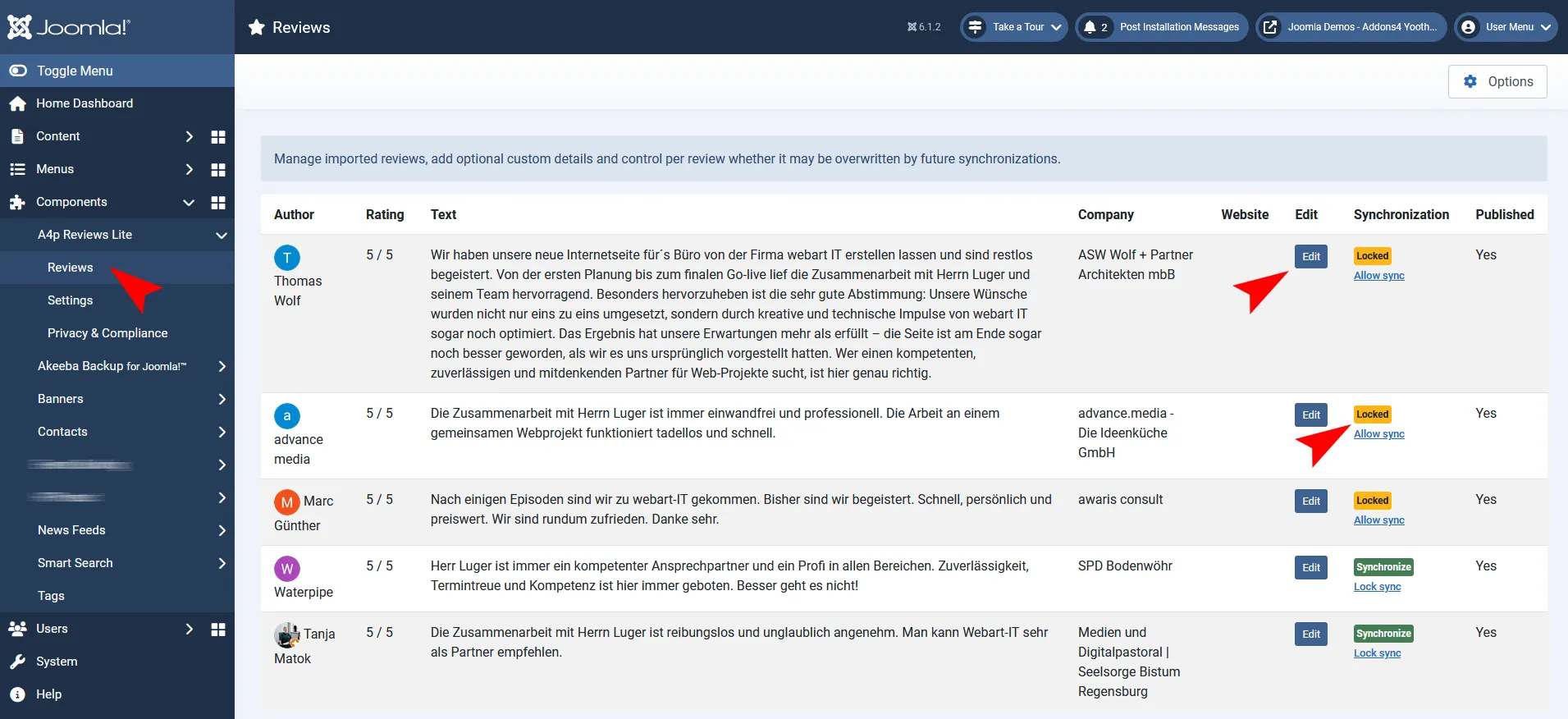
Open Components → A4p Reviews Lite → Reviews.
The review list provides access to imported records and their publication state.
12.1 Publishing
Only published reviews are available to:
- The Joomla module
- YOOtheme Pro Dynamic Content
To hide a review without deleting it, set it to unpublished.
12.2 Editing a Review
Open a review to manage its available fields.
Depending on the imported data and component version, these include:
- Author
- Rating
- Review text
- Company
- Position
- Website
- Internal note
- Publication status
- Manual ordering
- Synchronization state
- Synchronization lock
Company and Position
These fields allow imported reviews to be presented as professional testimonials. They are local editorial fields and are not necessarily supplied by Google.
Only add information you are permitted to publish.
Website
Enter a complete and trustworthy website address. The component normalizes supported addresses for secure frontend output.
Internal Note
Use the note field for editorial context. Internal notes are not intended for public output.
Do not store unnecessary sensitive personal data in this field.
Manual Ordering
Use the ordering field when the Joomla module is configured for manual ordering. Lower ordering positions appear first.
Synchronization Lock
Enable the lock for a review when future imports should not replace protected values.
This is useful after:
- Editing presentation text
- Adding company or position details
- Correcting an author label
- Adding a website
- Preparing a curated testimonial
Global Protection and Individual Locks
The global Protect Local Changes setting establishes the general import behavior. The record-level synchronization lock protects selected reviews individually.
For a strongly curated website, enable global protection and lock especially important records after editing.
13. Refreshing Profile Images
Where supported, author profile images can be stored locally.
The image process:
- Accepts HTTPS sources only
- Restricts downloads to approved Google image hosts
- Validates the returned file type
- Limits the file size
- Stores accepted images in images/a4p/reviews-lite
Supported formats include common web-image formats such as JPEG, PNG, WebP and GIF.
If a valid local image is unavailable, the frontend can use the author’s initial as a fallback.
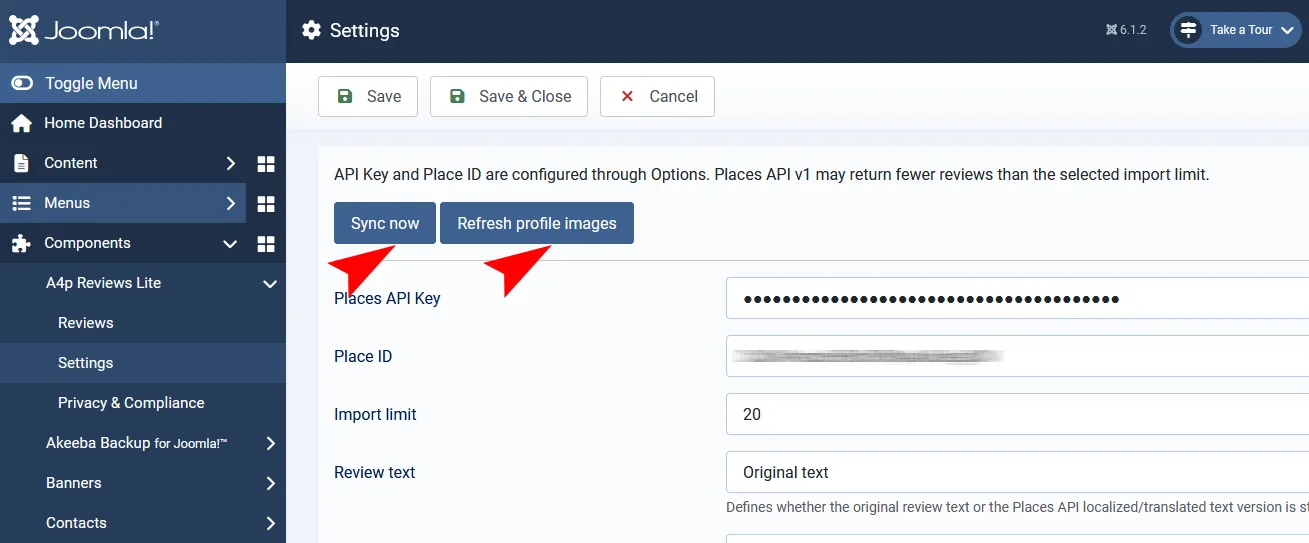
Refresh Procedure
- Open the review-management or synchronization area.
- Use the available profile-image refresh action.
- Wait until processing is complete.
- Check the affected reviews.
- Verify that files exist in images/a4p/reviews-lite.
- Test the frontend output.
The folder must be writable by Joomla.
14. Displaying Reviews with the Joomla Module
The included module works independently of YOOtheme Pro.
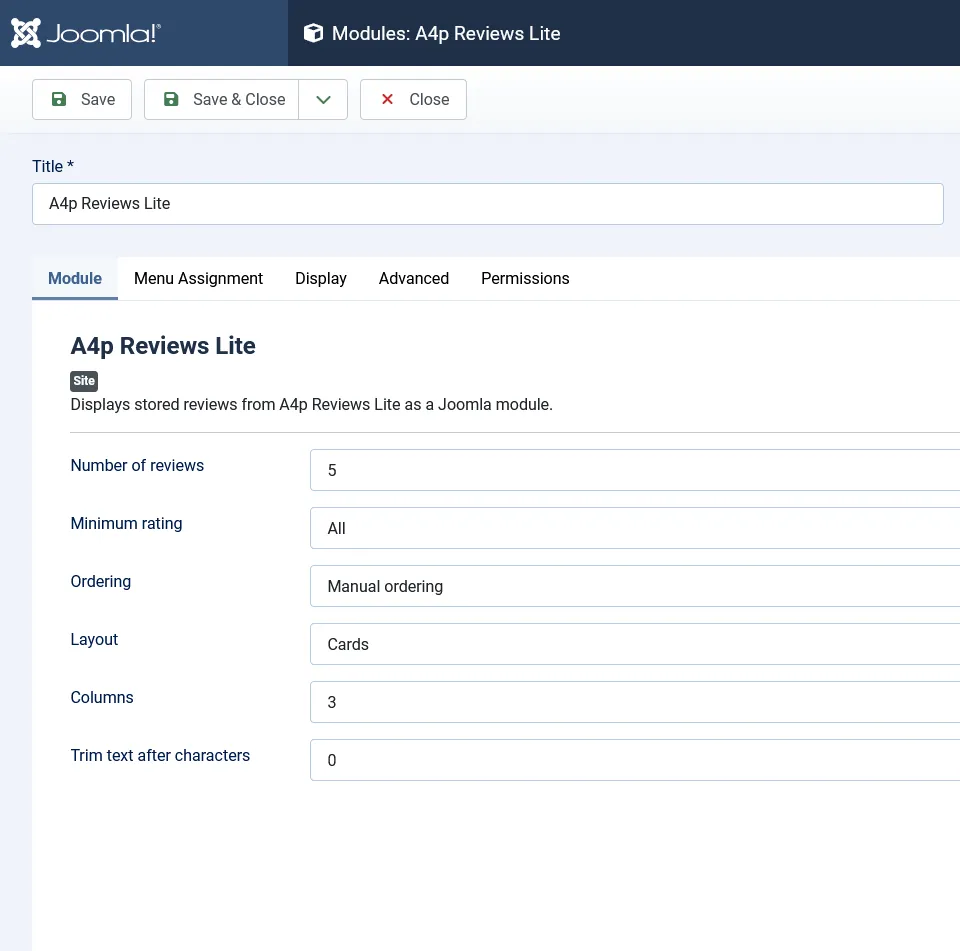
14.1 Create the Module
- Go to Content → Site Modules.
- Click New.
- Select A4p Reviews Lite.
- Enter a module title.
- Choose whether the title should be displayed.
- Assign a template position.
- Configure the review settings.
- Assign the module to the required menu items.
- Set the module status to Published.
- Save the module.
14.2 Review Quantity
Set the number of published reviews to display.
The permitted range is 1 to 50. The result is limited by the number of published reviews stored locally.
14.3 Minimum Rating
Choose the lowest rating that should be included:
- All ratings
- 1 star or higher
- 2 stars or higher
- 3 stars or higher
- 4 stars or higher
- 5 stars only
Use the filter responsibly. Displaying only selected positive reviews may require transparent communication depending on the context and applicable rules.
14.4 Ordering
Available ordering options are:
- Manual ordering
- Newest first
- Oldest first
- Highest rating first
- Lowest rating first
Manual ordering uses the ordering prepared in the Joomla review manager.
14.5 Layout
Choose one of the included layouts:
Cards
Displays each review in a separate card. Suitable for landing pages and testimonial sections.
Grid
Organizes reviews in a structured multi-column presentation.
List
Places reviews below one another and works well for longer text.
Compact
Uses a reduced presentation for narrow areas or pages where review content should occupy less space.
14.6 Columns
Cards and grid layouts support one to four columns.
Choose the number according to:
- Available content width
- Typical review length
- Template breakpoints
- Mobile readability
Always test the chosen layout on desktop, tablet and mobile devices.
14.7 Text Limit
Set the maximum displayed review-text length from 0 to 1000 characters.
A value of 0 displays the complete stored text. A positive value shortens longer text and adds an ellipsis.
14.8 Display Options
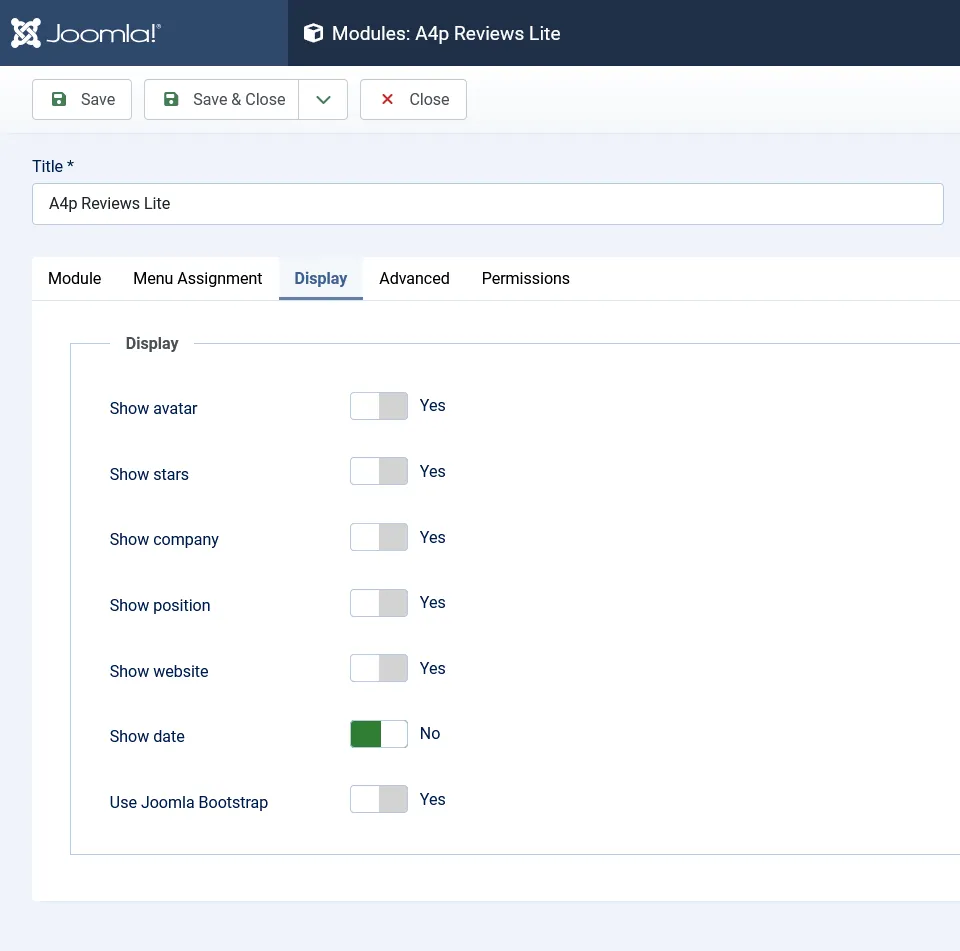
The module can independently show or hide:
- Profile image
- Rating
- Company
- Position
- Website
- Date
Only enable fields that contain useful and authorized information.
14.9 Joomla Bootstrap
The module can load Joomla’s Bootstrap assets.
Leave this enabled when the active template does not already provide the necessary Bootstrap styling. Disable it if the template loads compatible Bootstrap assets and duplicate loading causes conflicts.
14.10 Module Preview Checklist
After publishing the module, verify:
- Only published reviews appear
- Minimum-rating filtering is correct
- Ordering is correct
- Images load locally
- Long text is handled correctly
- Website links open safely
- The layout works on mobile
- No unnecessary Google request occurs during ordinary page loading
15. Displaying Reviews with YOOtheme Pro Dynamic Content
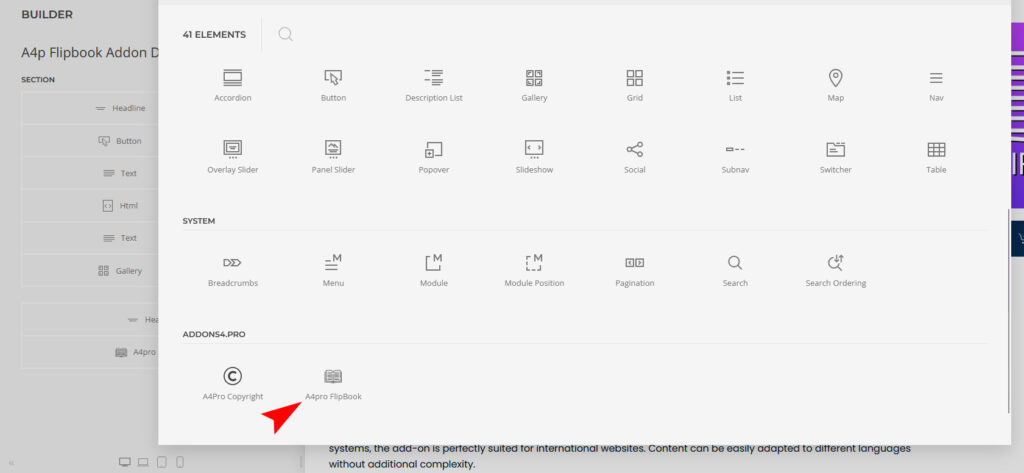
The YOOtheme Pro integration is provided by the system plugin.
15.1 Requirements
- YOOtheme Pro installed and active
- System – A4p Reviews Lite enabled
- At least one published review
- A valid page, template or layout editable with YOOtheme Pro
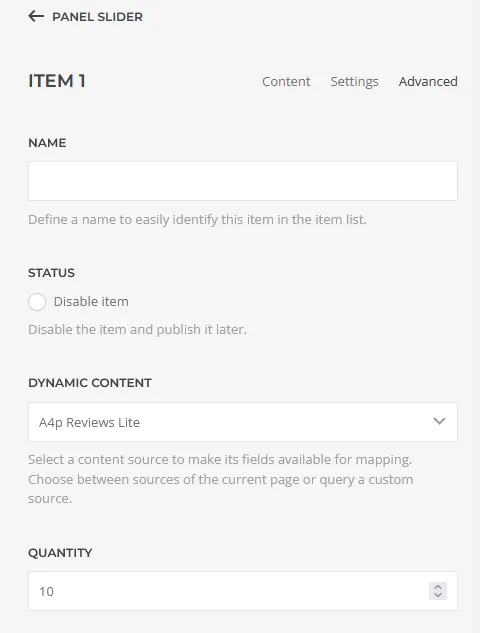
15.2 Create a Review Collection
- Open the intended page or template in YOOtheme Pro.
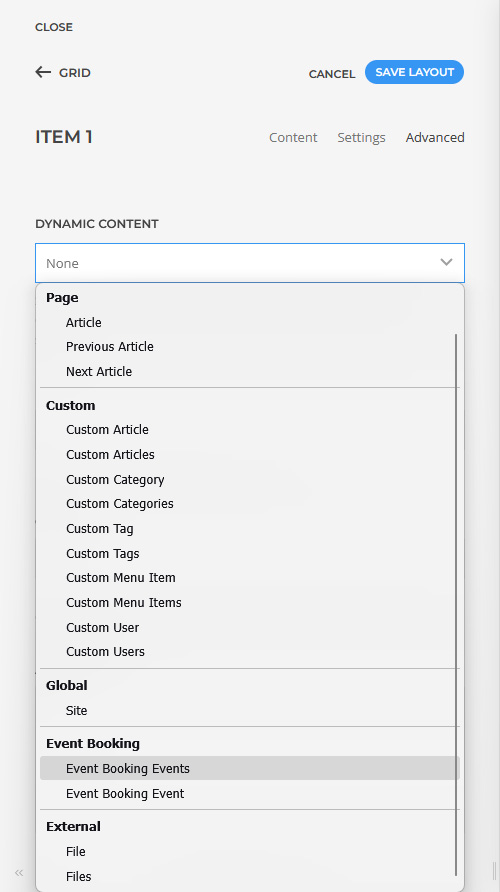
- Open the Dynamic Content configuration.
- Add a new source.
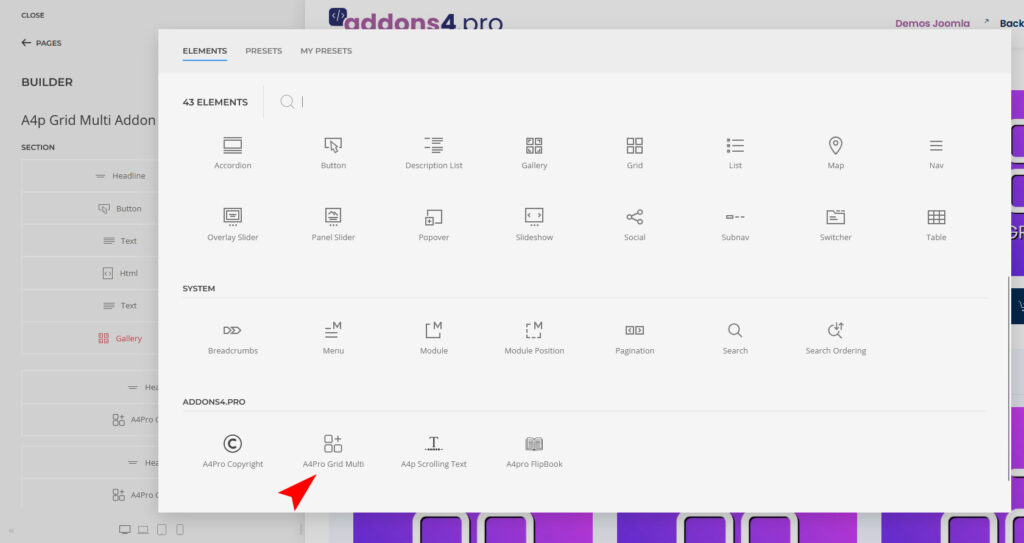
- Select the addons4.pro source group.
- Select A4p Reviews Lite.
- Enter the required quantity.
- Save the source.
- Add the YOOtheme Pro element that should repeat for the collection.
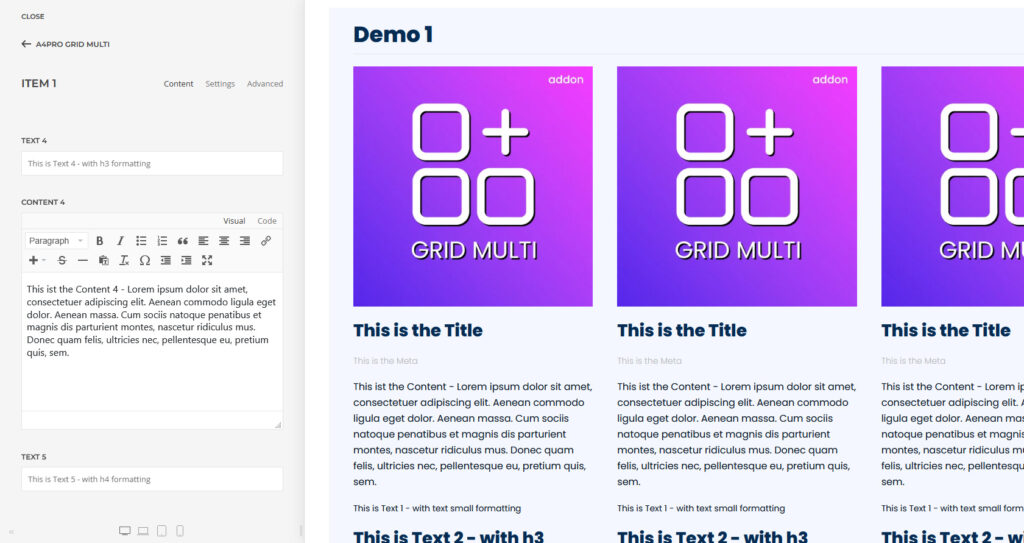
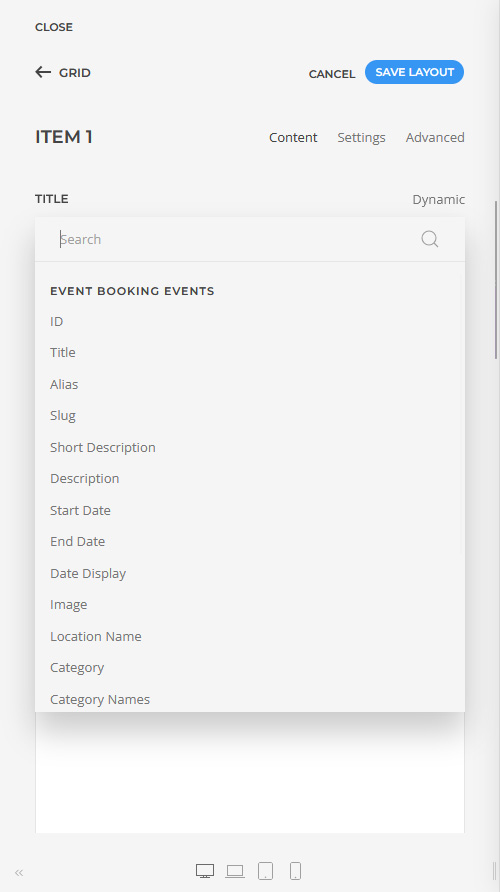
- Map the review fields to the element fields.
- Save and preview the page.
The collection contains published reviews only. Reviews are supplied according to the ordering prepared in Joomla, followed by their review date and internal ID where required for stable ordering.
15.3 Select One Specific Review
A separate Dynamic Content query can load an individual review.
- Find the review ID in the Joomla review manager.
- In YOOtheme Pro, add the individual A4p Review Lite source.
- Enter the review ID.
- Map the required fields.
- Save and test the layout.
An unpublished review is not returned to the frontend.
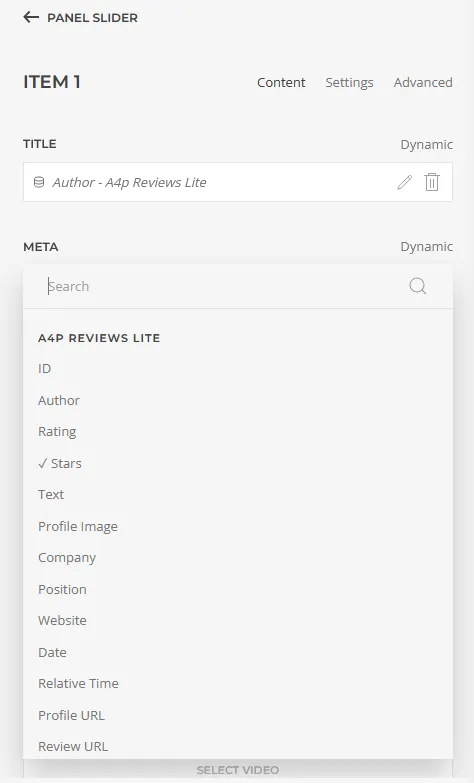
15.4 Available Dynamic Content Fields
ID
The local Joomla review ID.
Author
The stored display name of the reviewer.
Rating
The numerical review rating.
Stars
A formatted star representation suitable for text-based output.
Text
The stored review text. YOOtheme Pro text filters can be used to limit or preserve the text where supported.
Profile Image
The locally stored profile image path where available.
Company
Locally managed company information.
Position
Locally managed professional position.
Website
The normalized website address associated with the locally managed review record.
Date
The stored review date. YOOtheme Pro date filters can be applied where supported.
Relative Time
The relative time supplied with the imported data, where available.
Profile URL
The available reviewer-profile address, where supplied and stored.
Review URL
The individual review address where Google supplies and the component stores a suitable value. Do not assume that this field is available for every imported record.
Synchronization State
The local synchronization state of the review.
15.5 Example Field Mapping
For a testimonial card:
- Image → Profile Image
- Title → Author
- Meta → Company and Position
- Content → Text
- Badge or secondary text → Stars
- Link → Website or an available source URL
- Date → Date
For a review grid:
- Create an A4p Reviews Lite collection.
- Add a Grid element.
- Set the Grid content to the collection.
- Map the author to the title.
- Map the review text to the content.
- Map the profile image to the image field.
- Map the rating or stars to a meta field.
- Add company and position as secondary information.
- Configure responsive columns.
- Preview every breakpoint.
15.6 Empty Fields
Not every Google response contains every field. Company, position, website and internal notes are local editorial fields and may initially be empty.
Design the YOOtheme layout so that empty optional fields do not leave unnecessary separators or blank areas.
16. Configuring Automatic Synchronization
Automatic synchronization uses the included task plugin and Joomla Scheduled Tasks.
16.1 Enable the Task Plugin
- Go to System → Manage → Plugins.
- Search for A4p Reviews Lite.
- Open Task – A4p Reviews Lite.
- Enable the plugin.
- Save it.
16.2 Enable Scheduler Mode
- Open Components → A4p Reviews Lite → Settings.
- Set the synchronization mode to Scheduler.
- Save the configuration.
16.3 Create the Scheduled Task
- Go to System → Scheduled Tasks.
- Click New.
- Select the A4p Reviews Lite synchronization task.
- Enter a recognizable title.
- Choose a suitable execution interval.
- Enable the task.
- Save it.
- Use Joomla’s manual-run option for the first test where available.
- Inspect the execution result and log information.
A daily synchronization is sufficient for many websites. More frequent execution increases Google API use without guaranteeing that Google will return a different review selection.
16.4 Ensure Joomla Runs Scheduled Tasks
Creating a scheduled task is not enough unless Joomla’s Scheduler is triggered.
Depending on the hosting environment, use:
- Joomla’s lazy scheduler
- A server cron job
- A command-line scheduler trigger
- The execution method recommended by the hosting provider
For reliable production automation, a real server cron job is generally preferable to traffic-dependent execution.
After configuration:
- Wait for the next scheduled execution.
- Check the task’s last-run time.
- Check its status.
- Inspect imported or updated reviews.
- Confirm that locked editorial records remain protected.
17. Privacy and Compliance
17.1 Local-First Architecture
A4p Reviews Lite separates data import from frontend presentation.
During synchronization, the Joomla server contacts Google’s Places API. Imported review data is stored in the local Joomla database. Standard frontend output then uses the locally stored records rather than initiating a new Places API request for each visitor.
Supported profile images can also be stored locally.
This architecture can reduce third-party requests during page delivery and gives the website operator greater control over publication.
17.2 Privacy & Compliance Area
Open Components → A4p Reviews Lite → Privacy & Compliance.
Review the available status information for:
- API configuration
- Local review storage
- Profile-image handling
- Synchronization mode
- Scheduler configuration
- Relevant frontend behavior
The component also provides drafting aids for privacy-policy content in English and German. These can be copied as plain text or HTML.
Treat these texts as drafting assistance. They must be checked and adapted to the actual website configuration and applicable legal requirements.
17.3 Information to Consider for the Privacy Policy
Depending on the configuration, document:
- That Google review data is imported
- The purpose of presenting customer reviews
- That review content is stored in Joomla
- Whether profile images are downloaded locally
- When the Joomla server contacts Google
- Which Google service is used
- The configured synchronization frequency
- How long imported data is retained
- How publication and deletion requests are handled
- Which legal basis the website operator relies on
- How affected persons can contact the operator
- Any applicable Google attribution and source requirements
17.4 Google Content and Attribution
Locally storing review data does not remove obligations arising from Google’s terms and content policies.
The website operator must review the current requirements for:
- Google attribution
- Reviewer attribution
- Source links
- Displaying review dates
- Modifying or shortening review content
- Retaining imported content
- Regional requirements
Where an individual Google review or Google Maps source link is available, incorporate it into the presentation as required by Google’s current policies.
Do not describe the output as independent, verified testimonials if the content originates from Google.
17.5 Editorial Changes
Editing imported reviews can affect context and authenticity.
Recommended practice:
- Do not change the meaning of a review
- Do not invent reviewer information
- Clearly distinguish local additions from imported information
- Use text shortening only when the meaning remains intact
- Keep internal notes out of frontend output
- Obtain permission before adding personal or professional details not supplied by Google
17.6 No Automatic Legal Guarantee
A4p Reviews Lite provides technical tools that support a privacy-conscious implementation. It does not automatically make a website GDPR-compliant or legally compliant in every jurisdiction.
The website operator remains responsible for:
- The Google account and API configuration
- The legal basis for processing
- The privacy policy
- Google’s platform terms
- Attribution
- Publication decisions
- Retention and deletion
- Handling requests from affected persons
Seek qualified legal advice when necessary.
18. Security Recommendations
- Restrict the API key to Places API (New)
- Restrict the key by server IP where technically possible
- Never expose the key in frontend code
- Do not use HTTP referrer restrictions for the server-side key
- Enable Google Cloud usage monitoring
- Configure budget notifications
- Rotate exposed keys
- Keep Joomla and the extension updated
- Restrict component access to trusted administrators
- Maintain regular backups
- Protect the Joomla administrator account with multi-factor authentication
- Use HTTPS for the website
- Review installed security extensions for blocked outbound requests
The extension applies Joomla permissions, request-token protection, input filtering and restricted image-download handling. These controls complement but do not replace secure server administration.
19. Updates
A4p Reviews Lite integrates with Joomla’s update system.
Check for Updates
- Go to System → Update → Extensions.
- Click Check for Updates.
- Review the available A4p Reviews Lite update.
- Create a backup.
- Install the update.
- Clear relevant Joomla and template caches.
- Verify the component, module and plugins.
- Test manual synchronization.
- Test frontend output.
- Check the license status.
Protected updates require a valid license and successful entitlement check.
Do not manually replace individual package parts unless instructed by support. Component, module and plugins are versioned together.
20. Backup and Restore
A complete backup should contain:
- The Joomla database
- Joomla configuration
- A4p Reviews Lite extension files
- images/a4p/reviews-lite
- Template and YOOtheme layouts
- Module assignments
- Scheduler configuration
The database contains the locally managed review records. The image directory contains locally downloaded profile images.
After restoring a website to another domain:
- Check the Joomla configuration.
- Verify folder permissions.
- Check the extension license.
- Deactivate the old domain if necessary.
- Activate the new domain.
- Test Google API access.
- Test manual synchronization.
- Check scheduled tasks.
- Verify module and YOOtheme output.
21. Troubleshooting
No Reviews Are Imported
Check:
- Places API (New) is enabled
- Billing is active
- The API key is correct
- The Place ID is correct
- The key is restricted to the correct API
- The server IP matches the key restriction
- The Joomla server can reach Google
- Google returns reviews for the selected place
- The component settings were saved
Only a Few Reviews Are Imported
This is expected. Google’s Places API currently returns a maximum of five reviews and controls the selected reviews.
A higher import limit cannot override this Google limitation.
API Key Error
Check:
- The key was copied correctly
- Places API (New) is enabled in the same project
- Billing belongs to the same project
- API restrictions include Places API (New)
- IP restrictions contain the correct outgoing server IP
- An HTTP referrer restriction was not incorrectly applied
- The key has not been deleted or disabled
Profile Images Are Missing
Check:
- The Joomla server can reach approved Google image hosts
- images/a4p/reviews-lite is writable
- The remote image uses a supported format
- The image is within the permitted file-size limit
- A firewall is not blocking the download
- The imported review includes a suitable image address
A missing image should fall back to the author’s initial where supported.
Reviews Do Not Appear in the Module
Check:
- The module is published
- It is assigned to the current menu item
- It uses a valid template position
- Reviews are published
- The minimum-rating filter is not excluding them
- The module quantity is greater than zero
- Joomla and template caches have been cleared
Reviews Do Not Appear in YOOtheme Pro
Check:
- YOOtheme Pro is active
- System – A4p Reviews Lite is enabled
- Reviews are published
- The correct Dynamic Content source is selected
- The collection quantity is greater than zero
- The individual review ID exists
- The selected individual review is published
- YOOtheme Pro’s builder cache has been refreshed
Scheduled Synchronization Does Not Run
Check:
- Task – A4p Reviews Lite is enabled
- Scheduler mode is selected in the component
- The scheduled task is enabled
- Joomla has a working scheduler trigger
- The task’s next execution time is valid
- The hosting cron job is running
- The Google API configuration is valid
- The task log contains no connection or permission error
Local Changes Are Overwritten
Enable Protect Local Changes and apply the synchronization lock to important review records.
Test the workflow on one review before performing the next complete synchronization.
License Activation Fails
Check:
- The license is active
- The website activation limit has not been reached
- The current domain is correct
- PHP Sodium is installed
- Outgoing HTTPS works
- A security tool is not blocking the licensing request
Joomla Reports an Update but Cannot Download It
Check:
- The license is active
- The entitlement has not expired
- The website can contact the update service
- Joomla’s update cache has been refreshed
- The complete package is installed
- The system plugin is enabled